This post was written to support KoreaMac’s marketing efforts.

If you use a MacBook Pro for work or store photos and manuscripts on an iMac, device failure isn’t just a simple repair issue. When your Mac won’t power on or gets stuck during booting, data is the first thing on your mind.
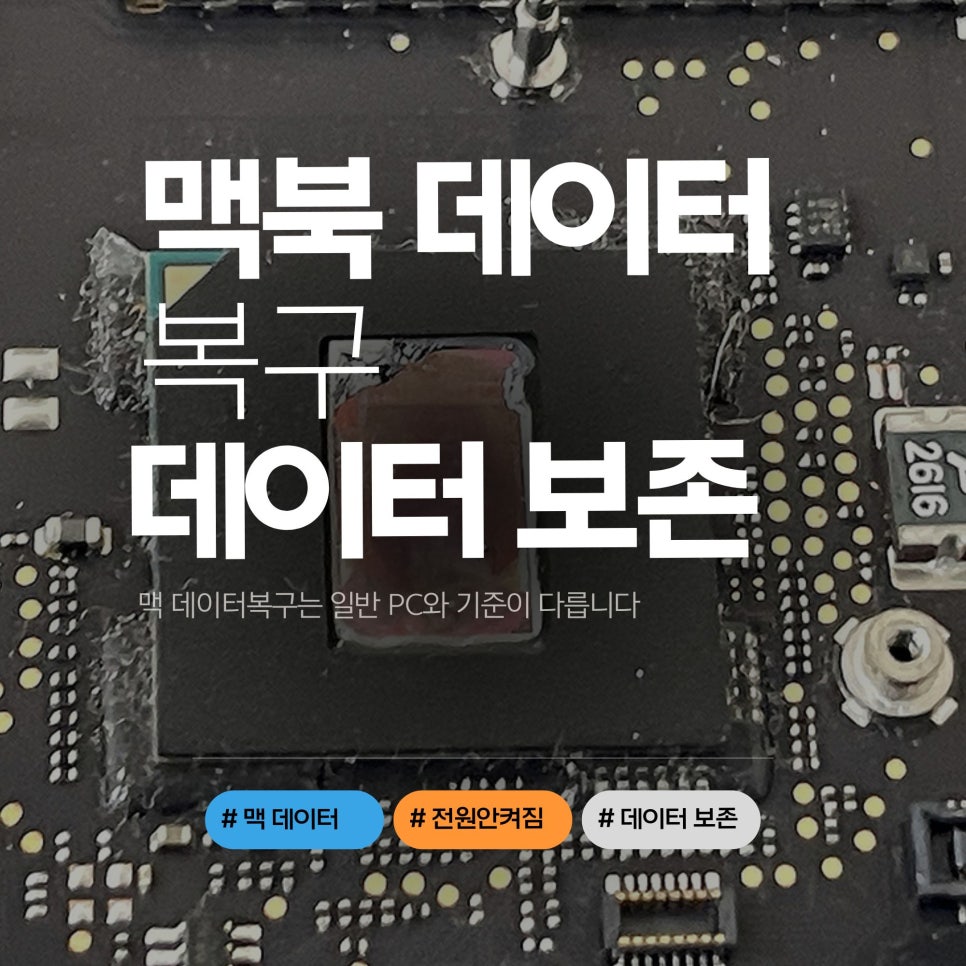
I also use AI agents for my projects, storing all command tasks or MD harnesses on my Mac. Since January this year, I’ve been running continuous learning. As my data grew, I spread it across iCloud, an external SSD, and a secondary MacBook connected via SSH. Managing this data is key because it directly impacts the AI agent’s performance.

When the weather gets warmer, the biggest concern is water damage. From personal experience, I now avoid drinking anything other than water at my desk due to a past flooding incident. If your MacBook gets water damaged, the common worry is whether the data survived.
This article is based on my involvement with KoreaMac, helping them with marketing and website management. We’ll look at what to consider when your MacBook Pro suffers power failure, your iMac won’t boot, or your SSD isn’t recognized — essentially, situations where your data is at risk.
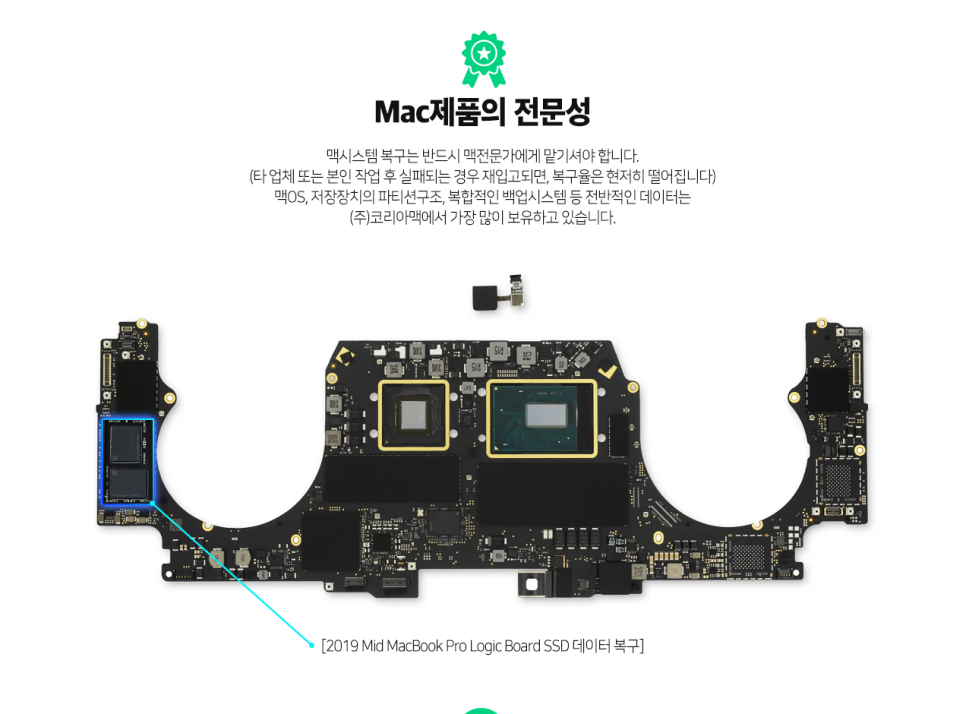
When recovering data from a MacBook Pro, start by checking the power status differently.
Just because it won’t turn on doesn’t mean the data is lost. Problems with the charging input circuit, USB-C ports, battery, or power components can prevent the screen from lighting up. If the storage device is intact, data recovery chances remain after inspection. However, frequently switching chargers or repeatedly pressing the power button when it won’t turn on can worsen internal circuit shorts or corrosion. Especially with MacBook Pro logic board data recovery, it’s crucial to examine the circuitry and storage together. Recent models, including Intel Macs with T2 chips and Apple Silicon Macs, have tighter security integrated with storage. Simply removing and checking the SSD might not solve the issue, so it’s vital that the diagnostic team understands the Mac architecture to decide the testing order.

For iMac data recovery, the cause of boot failure needs to be categorized first.
Sometimes the iMac has no power at all, but it can also freeze on the Apple logo, show a folder with a question mark, or boot extremely slowly. Although these symptoms look similar, the causes could be the storage device, macOS corruption, power issues, or internal cable problems. iMacs are often used for photo storage, design work, or shared office equipment over many years. It’s common to encounter problems with large amounts of data and no backups. Before thinking of a reset or reinstall when dealing with iMac SSD or hard drive recovery, always check the storage health first. Clicking format right away from Disk Utility in macOS recovery mode can alter the existing file structure. If you have important data, it’s safer to avoid repeated boots and consult with a technician first.

Power failure and data loss aren’t necessarily the same problem. When a MacBook Pro won’t power on or an iMac won’t boot, many people ask if the device can be repaired. But if data is your priority, these questions should be separated: "Can the device be used again?" and "Can the data be accessed first?" For issues with the charging input, logic board inspection might still allow data retrieval. However, if the storage device itself is damaged or the file system corrupted, data recovery must be handled separately from repair. This is why I recommend KoreaMac — they handle MacBook and iMac repairs, logic board repairs, and data recovery all under one roof. This integrated approach allows them to check both repair and data preservation possibilities together, which is crucial when data takes precedence.
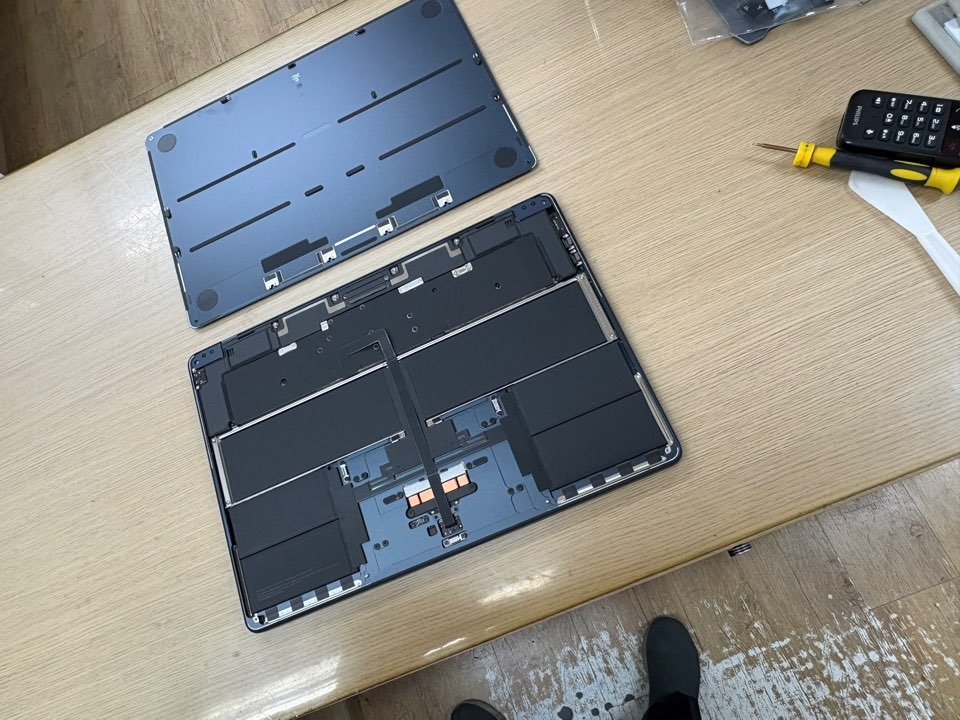
After water or shock damage, data preservation must come before functionality checks. Sometimes a MacBook Pro that took in coffee or water might initially turn on but later fail to charge or shut down unexpectedly. Shock or internal drive problems can also make iMac booting unstable. For water-damaged MacBook Pros, the first step is assessing internal moisture and corrosion. Liquid inside near the keyboard, battery connector, USB-C port, or logic board can cause worsening issues if powered on. Similar caution applies to external SSDs or hard drives showing recognition problems. If macOS prompts you to format, don’t rush into it, as this reduces recovery chances. It’s best to determine if the problem lies with cables, ports, or the drive itself before taking action.
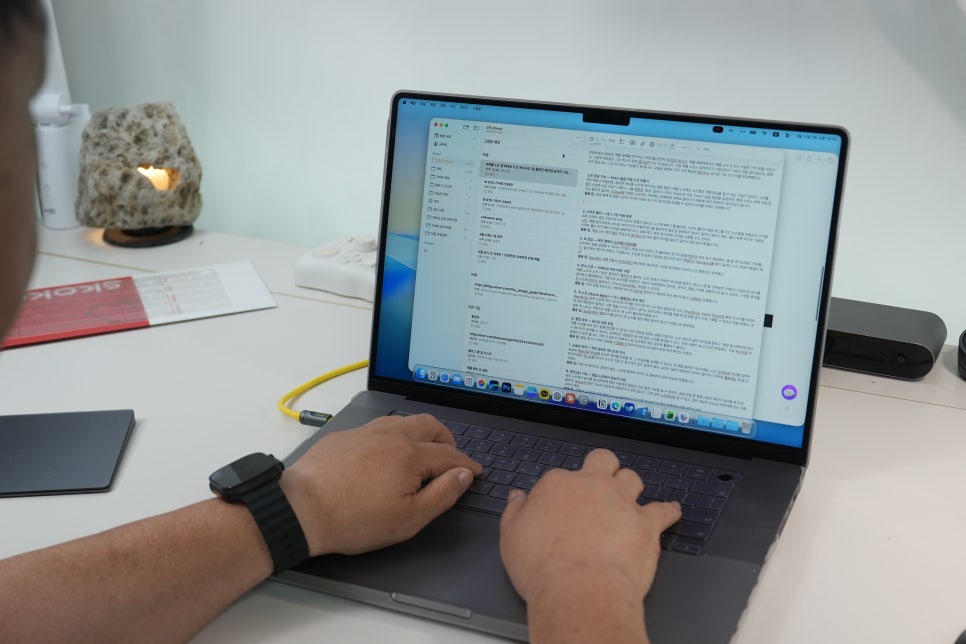
Before consulting for MacBook Pro or iMac data recovery, organizing key details helps.
Note your model, when symptoms began, charger connection response, any water or shock incidents, and whether you have backups. Also useful to mention if fans make noise, charging indicators light up, or if it freezes on the Apple logo. If the data is critical, say so upfront — whether it’s work files, original photos, video editing projects, or financial records. This shifts the focus from device repair to prioritizing data preservation. When contacting KoreaMac, mentioning symptoms alongside your main concern, like "My MacBook Pro won’t power on but I need the data first" or "My iMac won’t boot and I want to recover photo files," ensures more accurate advice.
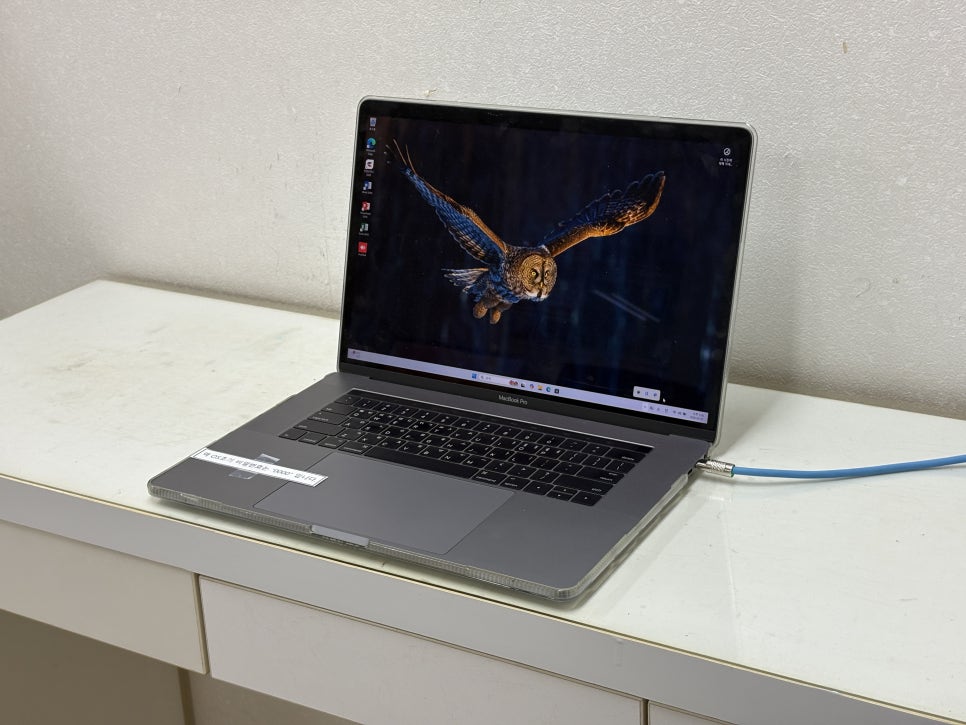
In Mac data recovery, the right approach is more important than a quick answer.
Whether it’s power failure, boot issues, water damage, or storage recognition problems, each scenario requires a different method. Even among MacBook Pros, the evaluation changes if it’s a logic board or SSD issue, and iMacs need separate assessments for boot symptoms and storage health. Not all data can be guaranteed for recovery, but avoiding hasty self-fixes or repeated boot attempts often preserves options. If you rely on your MacBook Pro or iMac for work, regular backups using Time Machine, external SSDs, or the cloud are essential. If trouble starts, stop using the device, note the symptoms clearly, and seek consultation promptly. For MacBook Pro or iMac data recovery, a service like KoreaMac with experience in Mac internals and logic board repair is the realistic first step to assess data preservation.
#MacBookProDataRecovery #iMacDataRecovery #MacDataRecovery #MacBookDataRecovery #MacBookProPowerFailure #iMacBootFailure #MacBookProLogicBoard #iMacSSDDataRecovery #iMacHardDriveRecovery #MacBookWaterDamage #ExternalSSDRecognitionIssue #MacBookRepair #iMacRepair #KoreaMac #Chunchoo