This post is sponsored by Naver Brand Connects.
.jpg?type=w966)
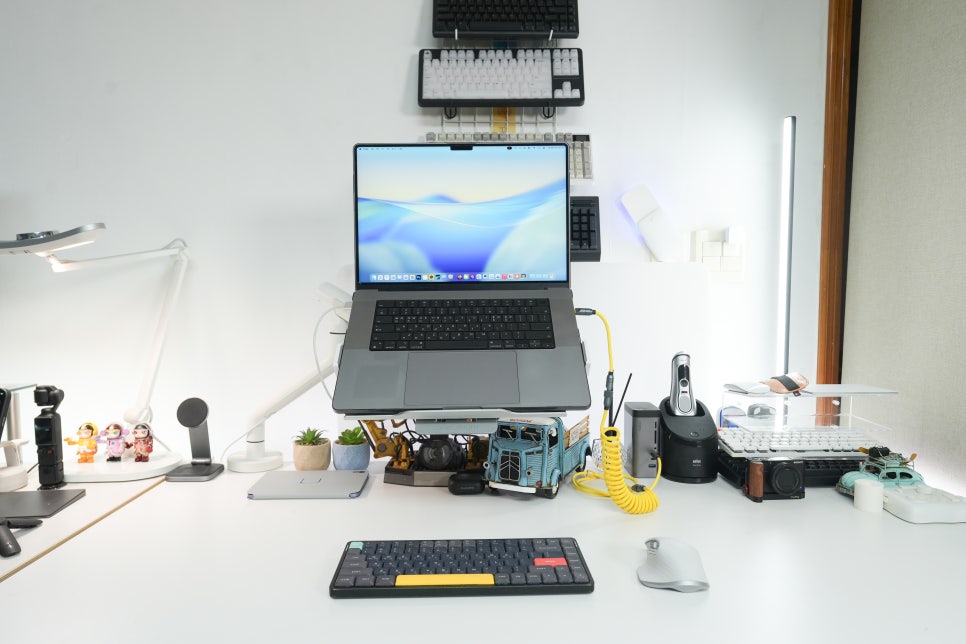
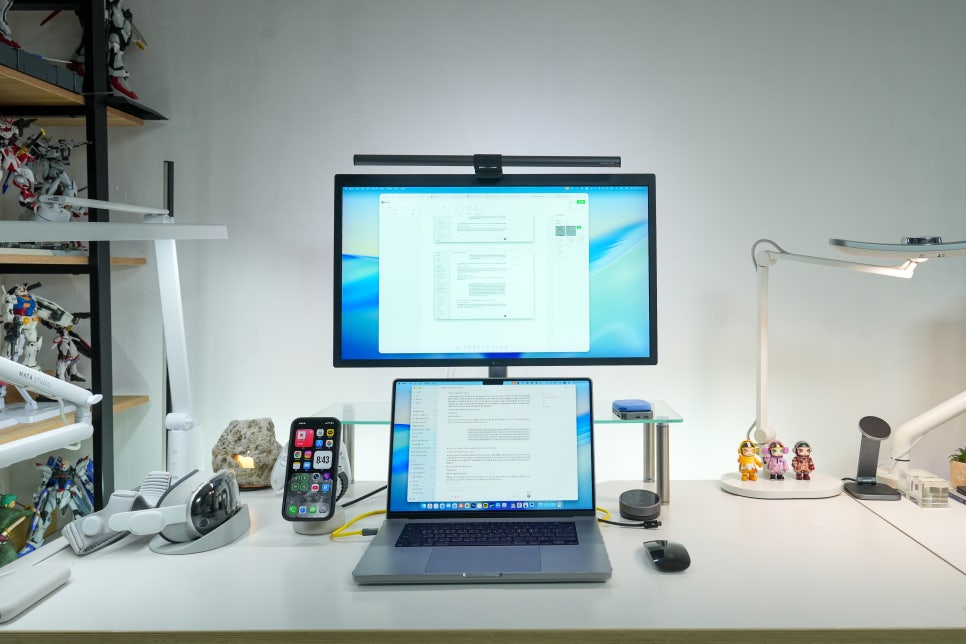
At first, I planned to write a standard monitor arm review about the CamelMount GDA2. However, the review got delayed when my old monitor broke during removal. By the time I started writing, my work setup had also changed. These days, I often use two MacBooks connected to AI agents as part of my workflow.
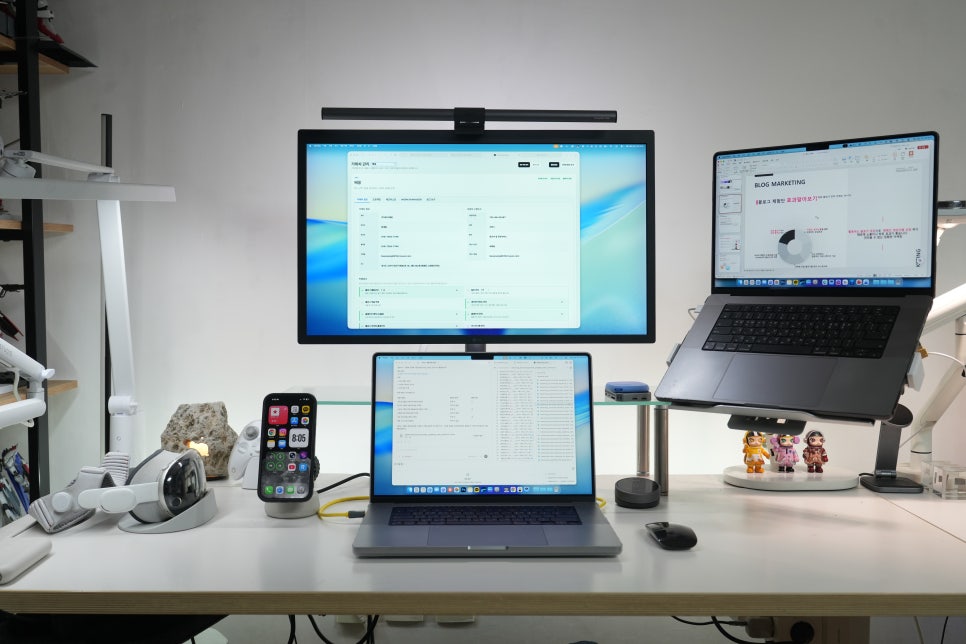
In fact, I'm quite used to multi-computer setups leveraging cloud computing, so this environment feels familiar.
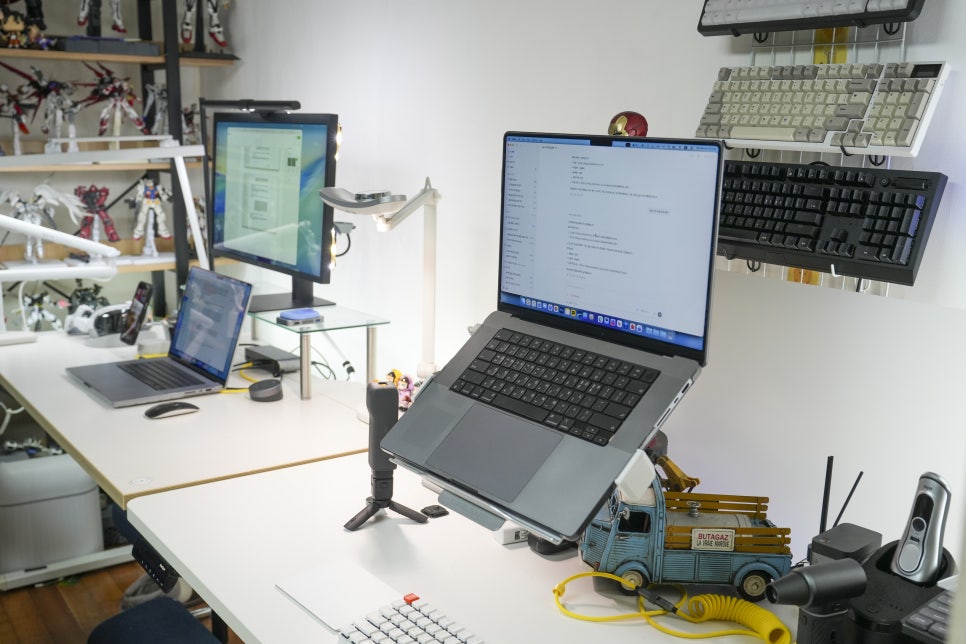
I use one MacBook for drafting and file checking, while the other handles lengthy automated tasks. Repetitive jobs like adding new RSS addresses to Google Search Console or registering blog archive pages in search are delegated to the AI agent. I also run keyword monitoring and search exposure analysis for managed brand blogs on the secondary MacBook. With this use case, the challenge wasn’t performance but desk space. Having two MacBooks, an external monitor, keyboard, mouse, and charging cables on the desk leaves little room to move. So this time, I tried attaching a laptop stand to the GDA2 to elevate the MacBooks.
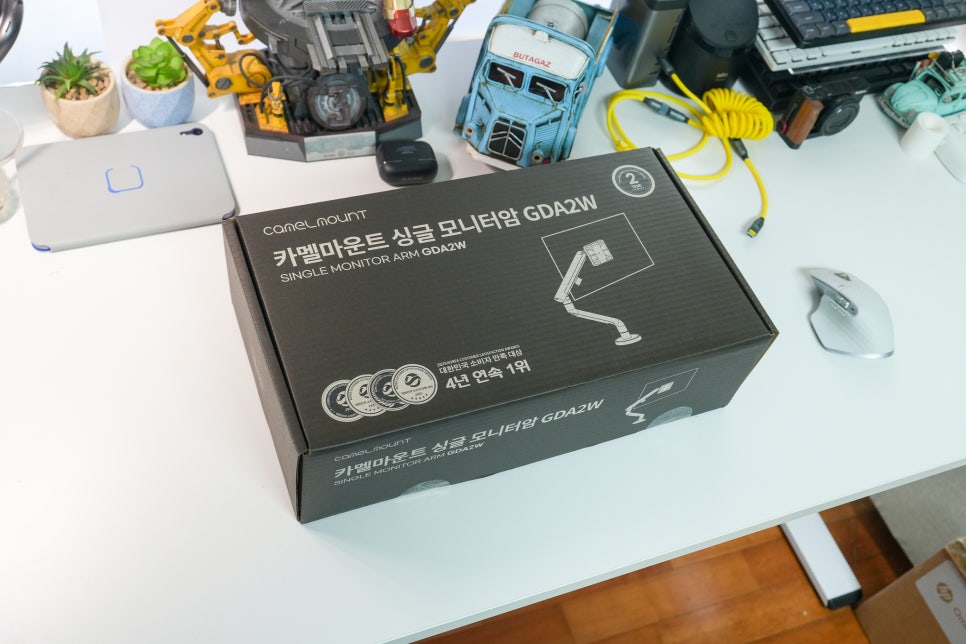
Why I revisited the monitor arm concept

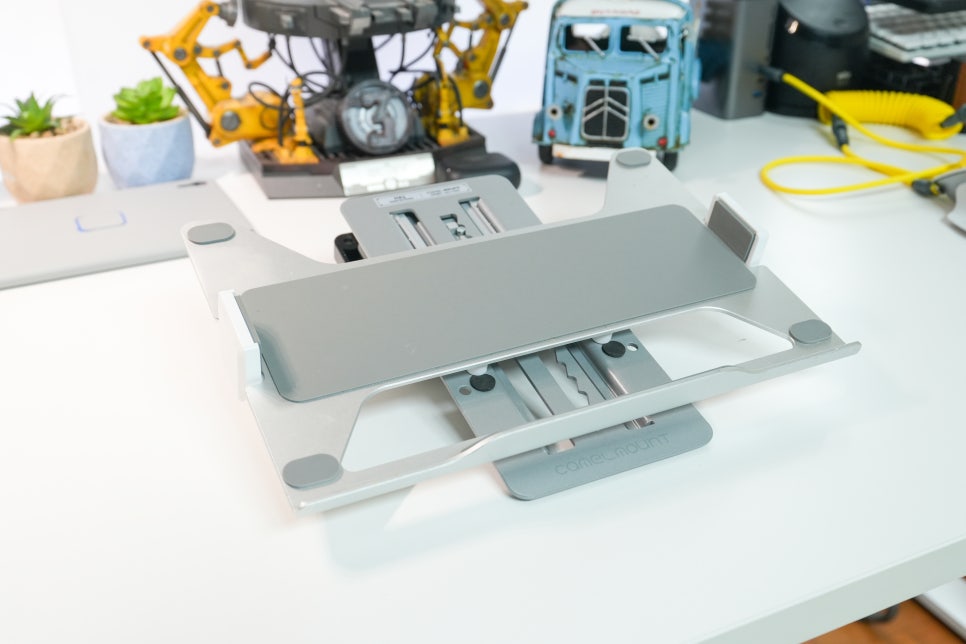
I’ve used CamelMount dual monitor arms before, which greatly improved desk space by elevating two monitors. But with dual arms moving together, pushing one to the back when not in use sometimes made the desk feel cluttered. The GDA2 is a single-arm design with a different purpose. Originally, I wanted to move a monitor between two desks, but now I place a laptop stand on it to lift the MacBook. When my main desk gets crowded, I can slide the arm fully over to the secondary desk, making my workflow more efficient.

Installation aspects I liked
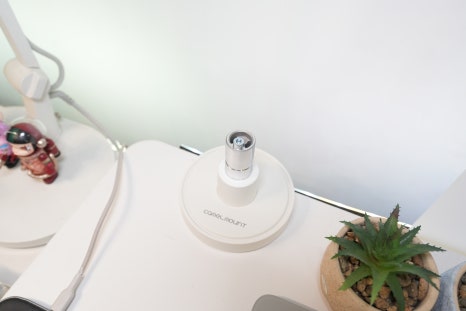
As I've installed CamelMount products on multiple desks before, the setup was straightforward. What stood out this time was the clamp that secures to the desk. Instead of a time-consuming screw-tightening, it feels almost like a one-click clamp that holds firmly with just half a turn of a knob.
Removing the visible screws lets you angle the arm towards the back of the desk. I personally remove them for better use.
This design helps ease installation for both experienced users and beginners. Once the clamp grips securely, adjusting height and angle becomes much easier.
A monitor arm that lives up to its design name
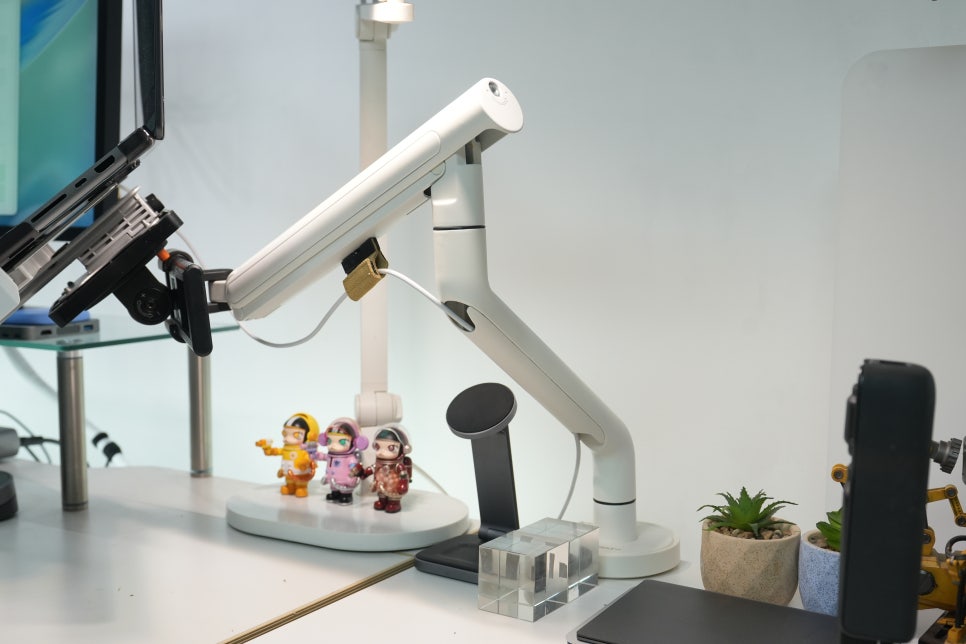
What I appreciate most about the CamelMount GDA2 is its sleek design. Even high-weight monitor arms today prioritize looks, but the GD series stands out with its clean lines visible on the desk surface. It blends well with the desktop decor.
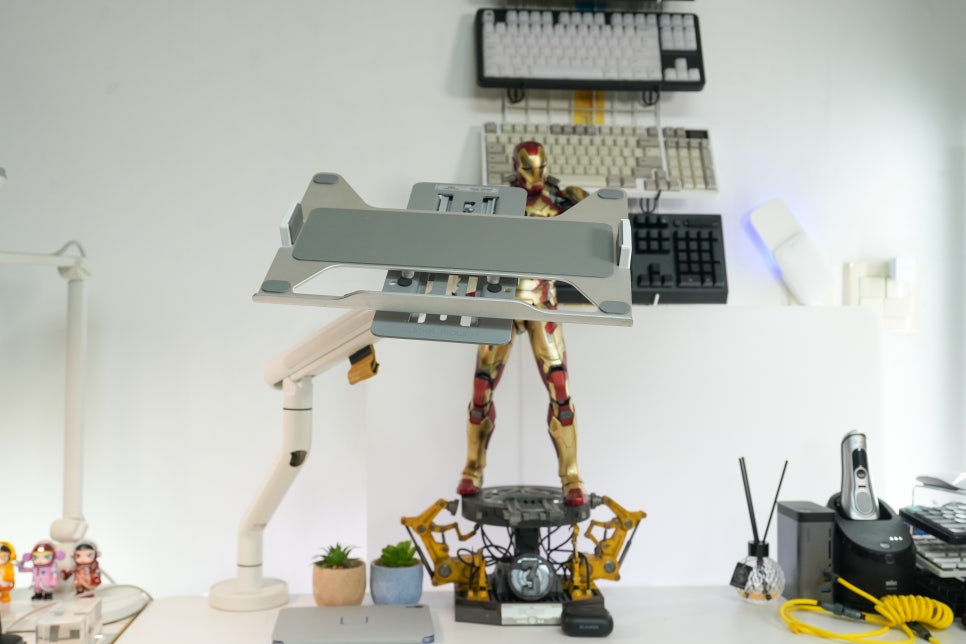
My desk is an ivory-toned, off-white shade rather than pure white, and the GDA2’s white finish complements it nicely. Whether I rest a laptop on it or push it aside when not in use, it never feels cluttered.
What to check before installation
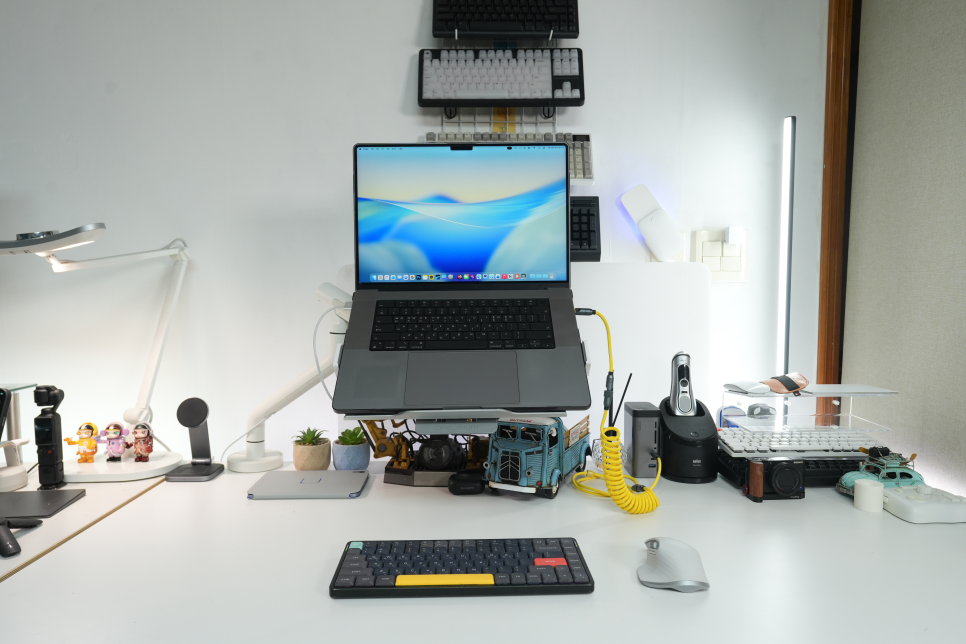
My desk isn’t flush against the wall but has about 15cm of clearance behind it.
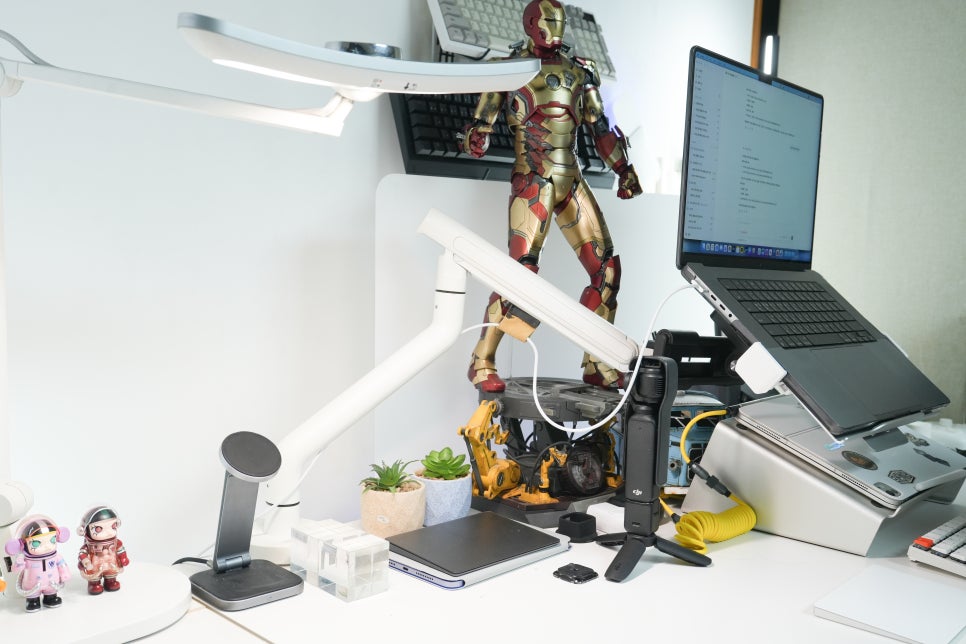
I didn’t find many downsides during use. My goals were to save desk space and raise the laptop to eye level, and it delivered well. However, you should always check your setup first: Is there space behind the desk to clamp the arm? Does the desk thickness match the clamp specs? And is the weight of your equipment within limits? The GDA2 supports 17-inch to 32-inch monitors or devices weighing between 3kg and 9kg. When pairing with a laptop stand, remember to account for that combined weight.
Is it stable enough for laptops?
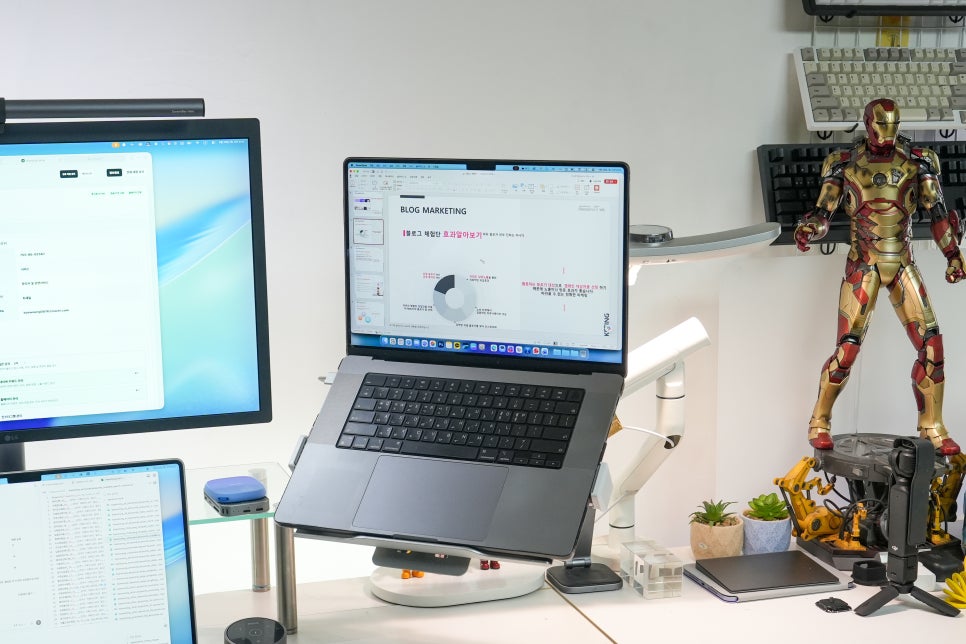
I’ve attached a laptop stand on the GDA2 to hold my MacBook. I don’t type directly on the suspended MacBook; instead, I use a separate keyboard or Universal Control. So the raised MacBook acts more like a secondary screen or a way to monitor automation tasks.