This post was written with marketing support from KoreaMac.
.jpg?type=w966)
When you use a Mac for a long time, most tasks are handled within macOS. I also do almost everything on a Mac – writing, organizing images, running my blog, and website work. However, there are still moments when a Windows environment is required, such as for public institution websites, accounting software, or some business-specific programs. Back in the Intel Mac days, many people used Boot Camp to install and run Windows separately. But with Apple Silicon MacBook Pro and iMac models since M1, switching directly to that method is difficult. Nowadays, using Parallels Desktop to run Windows 11 within macOS has become a practical alternative.
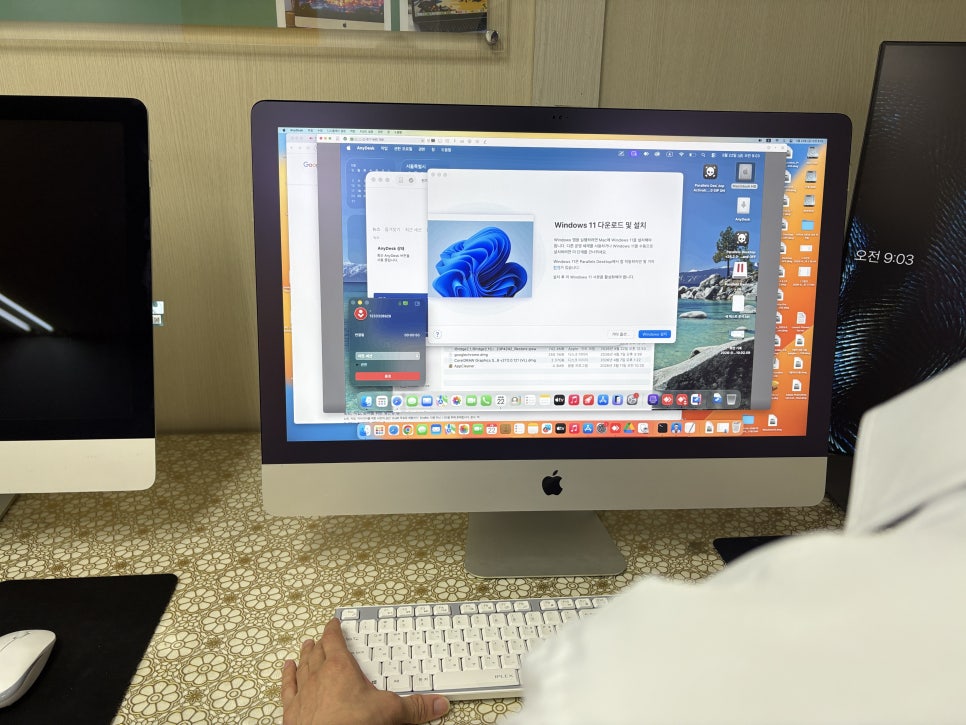
There are still times when Windows on a Mac is necessary. Even those who primarily use MacBook Pro sometimes need Windows for client files or certain programs. Common examples include Hangul documents, legacy business software, certificate-requiring sites, or device configuration programs that either lack Mac applications or have limited features.
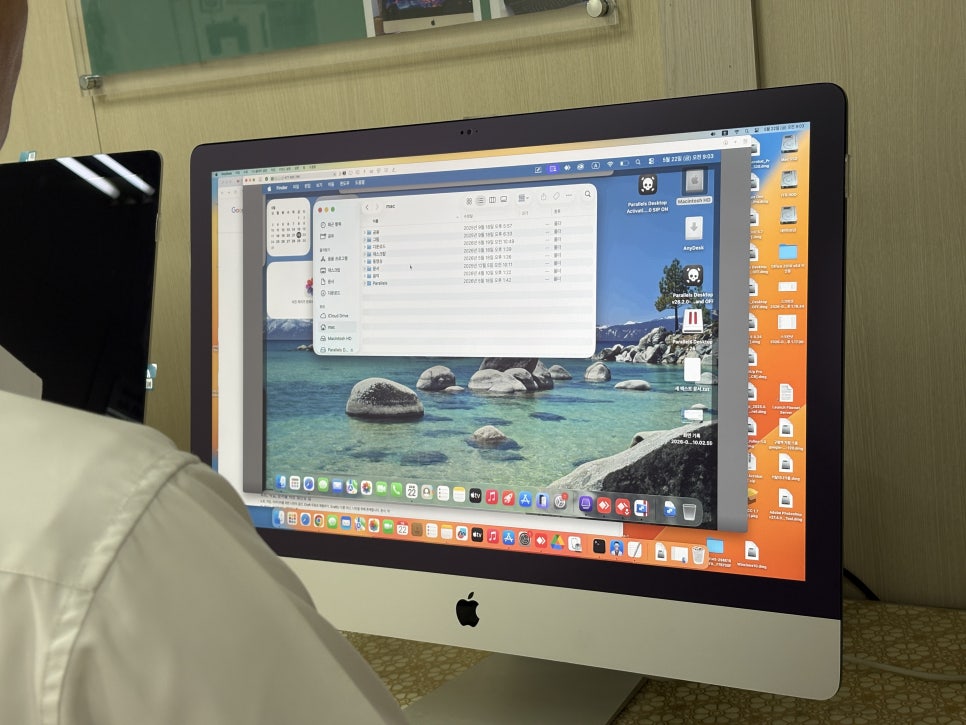
iMacs are often fixed in offices or stores. Their large screens and spacious work areas are great for consultations, writing documents, and organizing photos, but if certain tasks require Windows-only software, it means having an additional PC. Installing Parallels Desktop lets you keep using your Mac as is while opening Windows 11 only when needed.
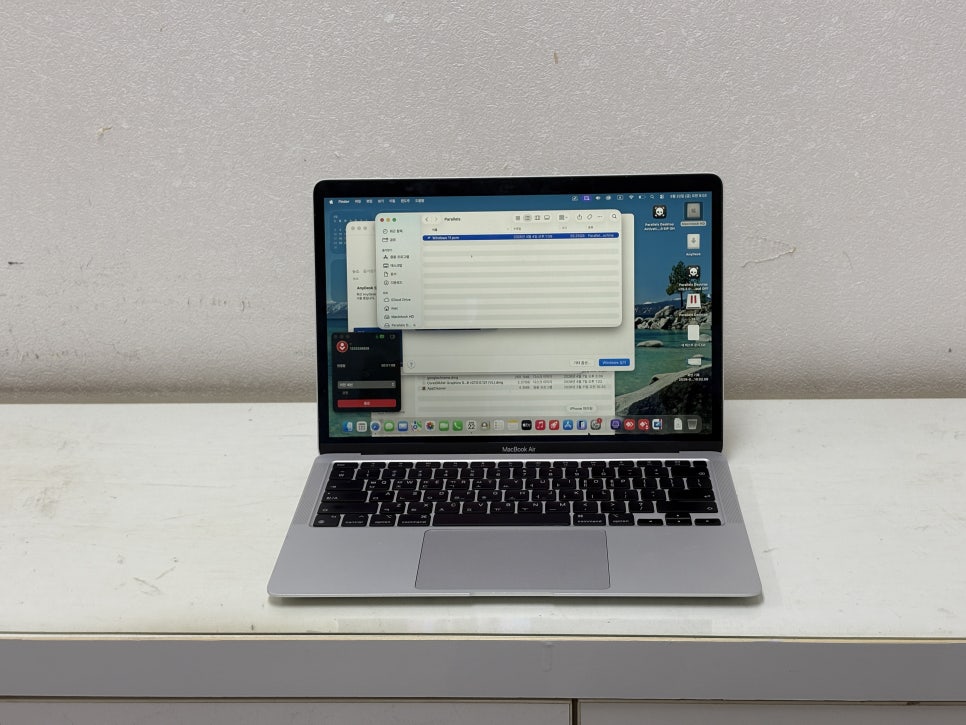
Parallels Desktop is different from Boot Camp. Boot Camp requires rebooting to switch between macOS and Windows. Parallels Desktop runs Windows as a virtual environment on top of macOS, allowing you to open Windows apps directly from a Mac app and seamlessly exchange files between the two systems.
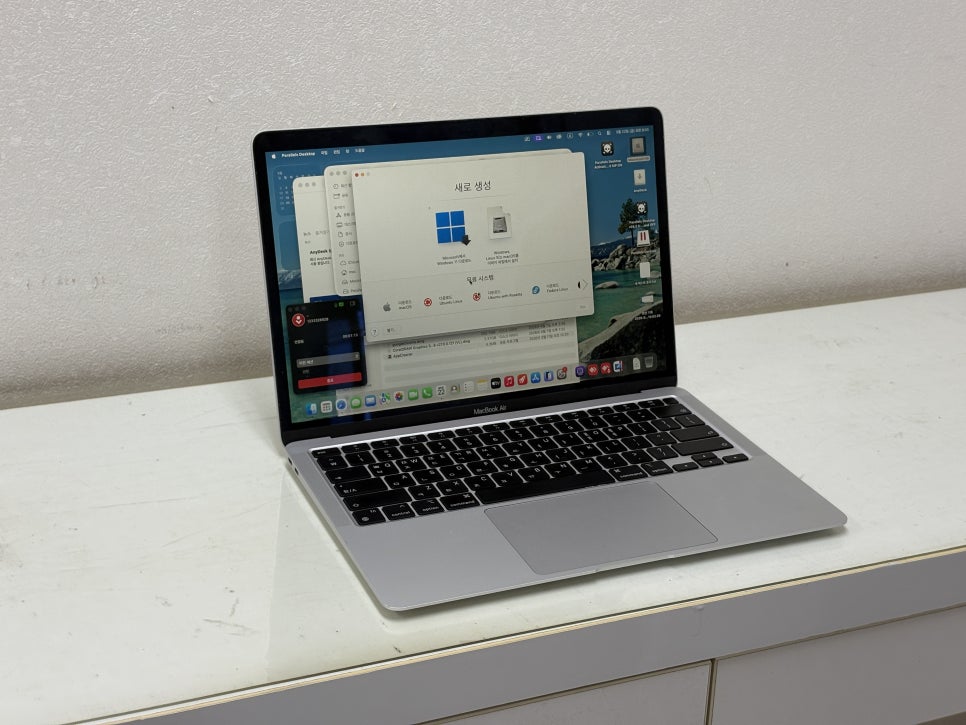
This difference is especially significant on Apple Silicon MacBook Pro and iMac models. Apple’s official documentation only guides Boot Camp installation for Intel-based Macs, while Microsoft recommends Windows 365 or Parallels Desktop for M-series Macs. Users should first check if their Mac has an Intel or M-series chip.
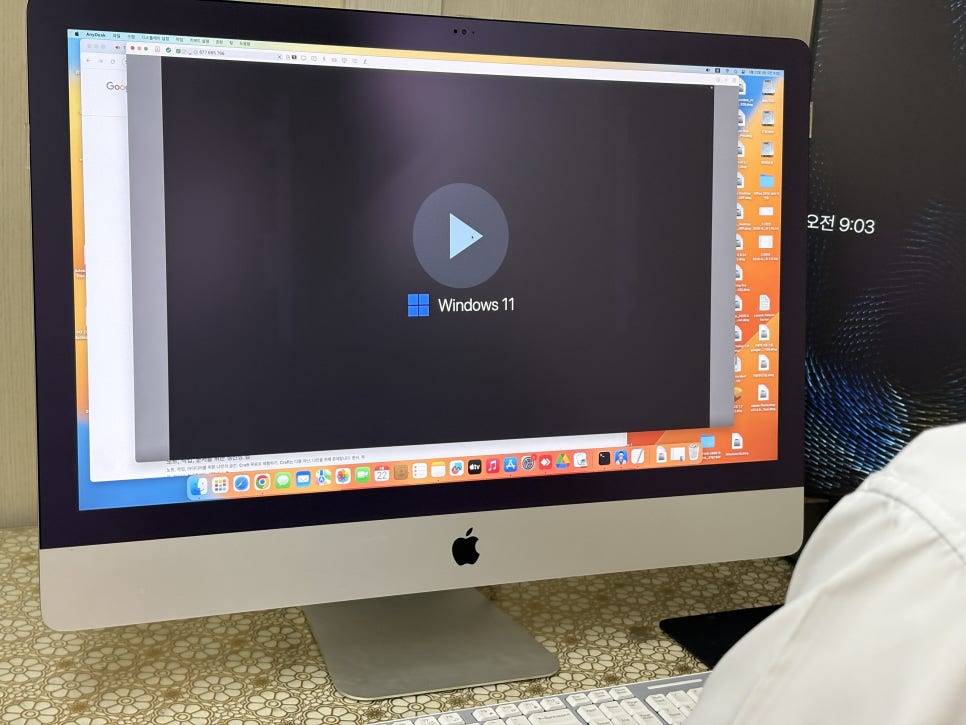
Why introduce KoreaMac remote installation?
While you can install Parallels Desktop yourself, beginners face many steps at once – setting up accounts, licenses, downloading Windows 11, configuring virtual machines, and allocating storage. Without knowing which options to choose, you might end up with a slow setup or programs that don’t run properly.
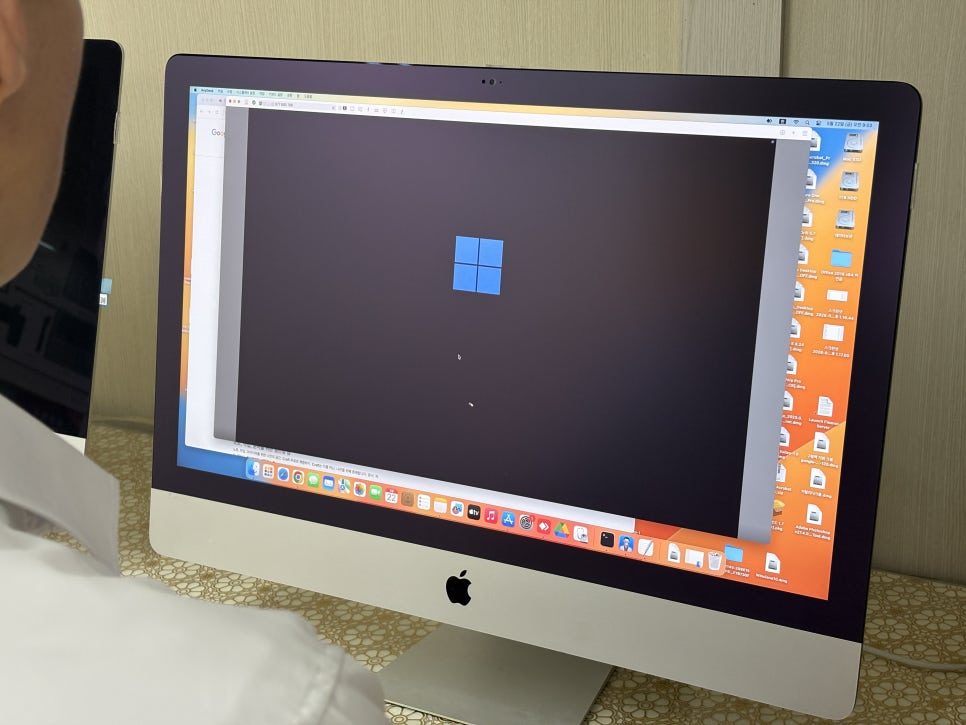
KoreaMac specializes in MacBook Pro and iMac and adapts the installation process to your model. As shown in the photos, they remotely connect to your screen to install Parallels Desktop and verify Windows 11 is running smoothly. You don’t have to leave your device, and you can ask questions during the process.
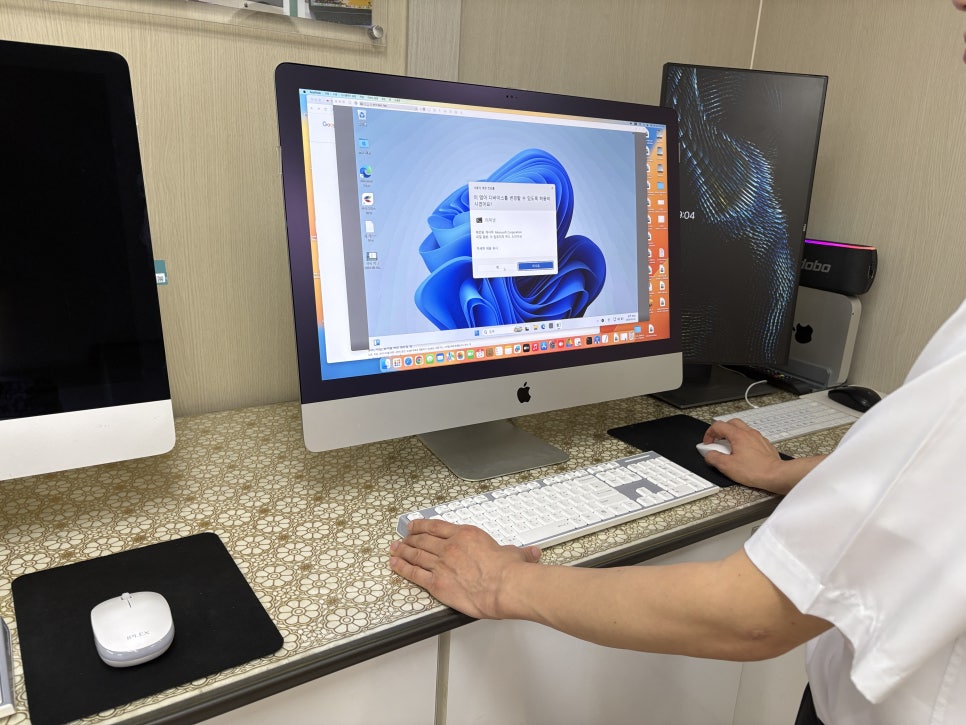
Settings tailored to your usage are more important than just installation. When installing Parallels Desktop, it’s better to consider how you’ll use Windows than just clicking next. For document work and public institution browsing, you don’t need to allocate excessive resources. But if you’ll run intensive business software for long periods, it’s best to assign plenty of memory and storage.
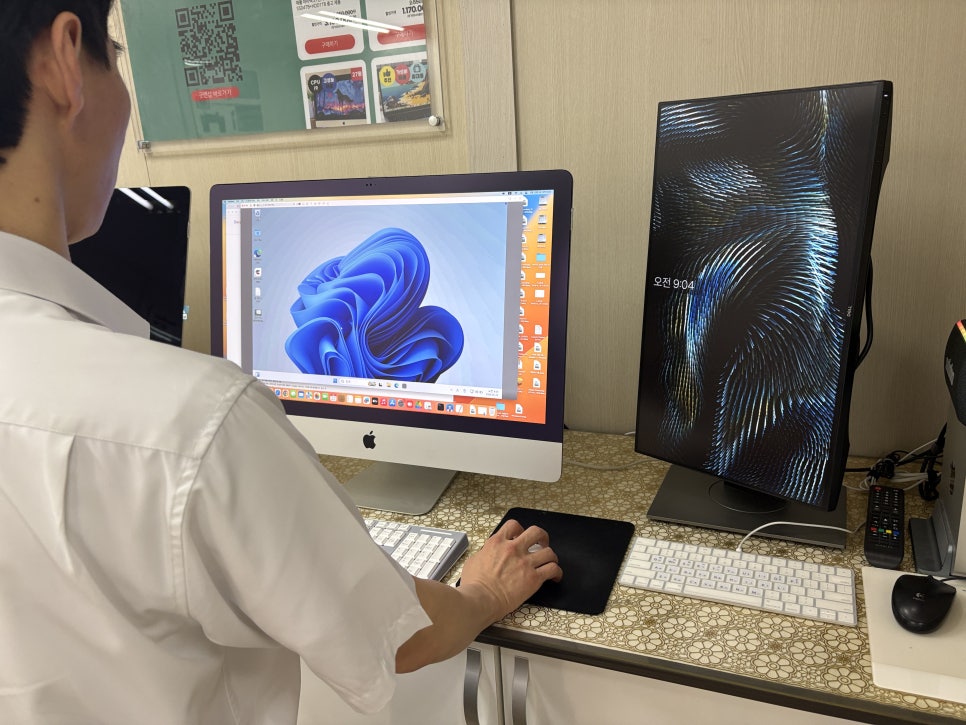
Because MacBook Pros are often used on the go, battery life and heat generation also matter. iMacs are stationary, so connections to monitors and peripherals are important. How you use printers, external drives, certificates, and shared folders on Windows should be checked during installation to avoid future hassles. After installation, don’t just verify Windows boots up – open the programs you’ll use daily, test browser logins, document opening, file transfers, and Korean typing to ensure you can jump into work immediately after remote installation.
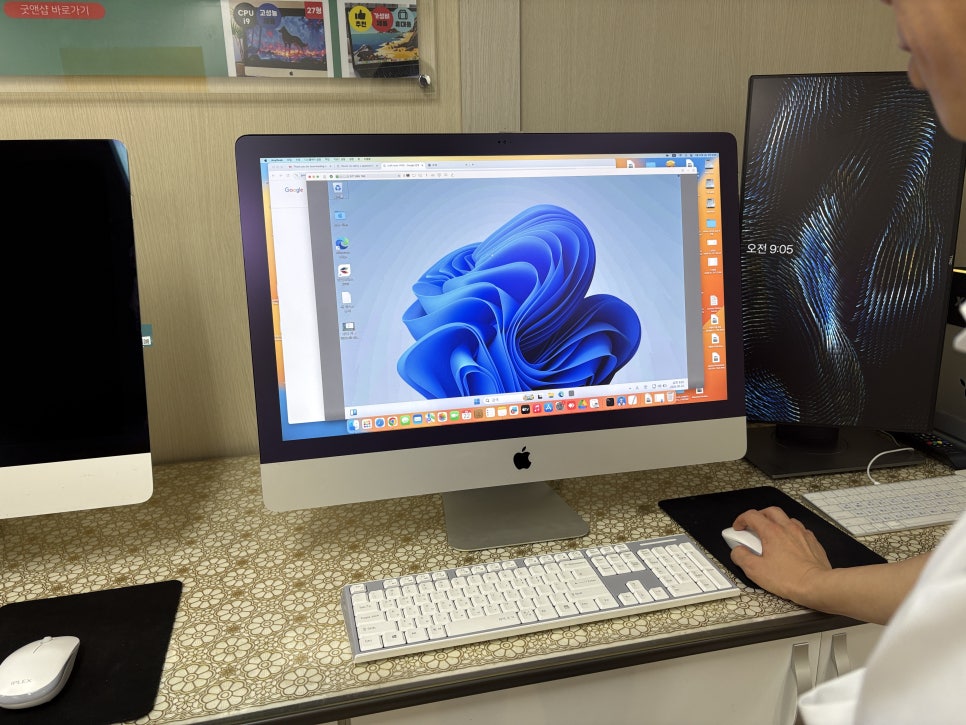
Remote installation suits those who got stuck trying to install themselves. It saves time, especially if you use a MacBook Pro for work and can’t afford downtime, or if you must run both macOS and Windows on a single iMac. However, not all Windows programs run the same way. Apple Silicon Macs run Windows 11 Arm, so old programs or special security modules need prior compatibility checks. Let KoreaMac know the program names during consultation to guide the installation properly.
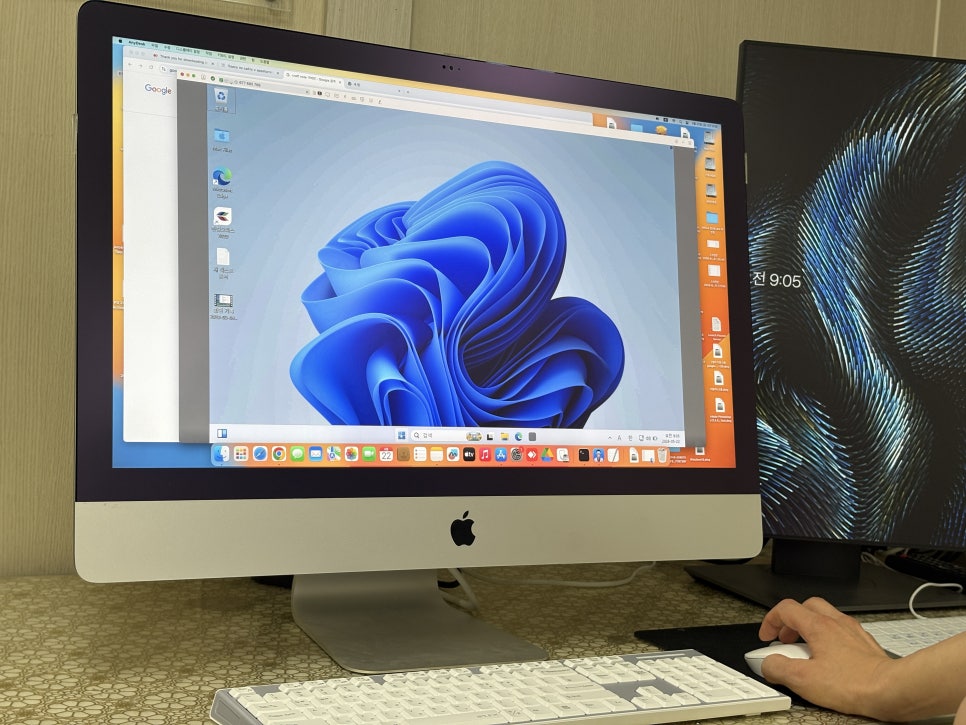
In conclusion, a way to add Windows without giving up your Mac.
MacBook Pro and iMac remain the most comfortable devices for macOS. But work environments often don’t end with macOS alone. If you find yourself needing Windows 11 repeatedly, consider adding it via Parallels Desktop rather than maintaining an extra PC.
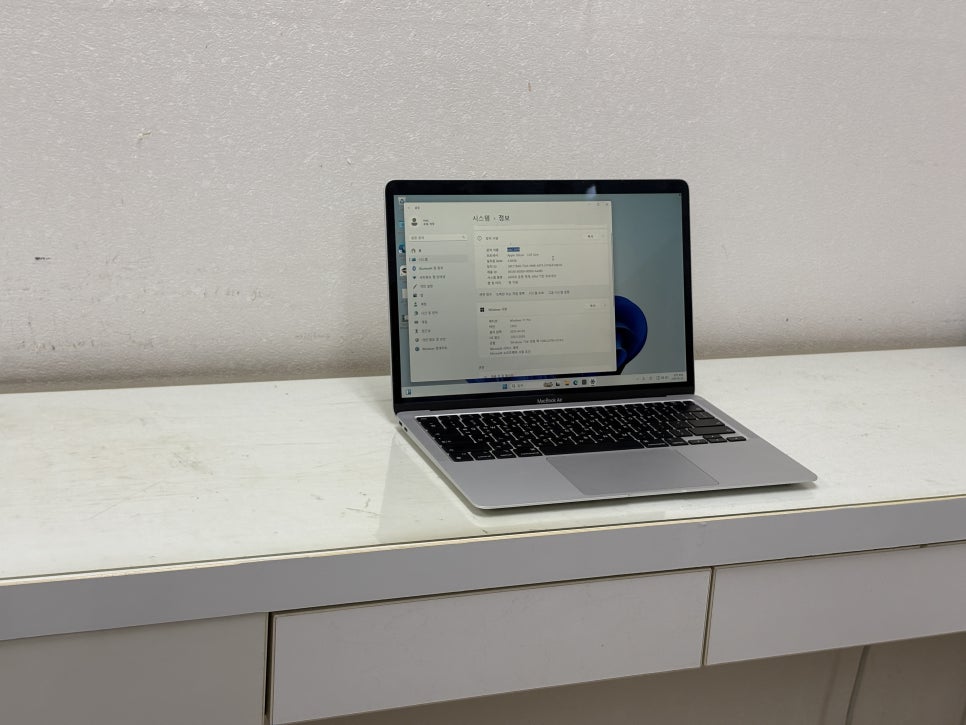
KoreaMac’s remote installation service helps you avoid confusion during this process. They review your Mac’s chip type, storage, intended use, and Windows programs before proceeding with setup, reducing the burden for first-time users. If you want to keep using your Mac as is and open Windows 11 only when needed, consulting them is a good option.
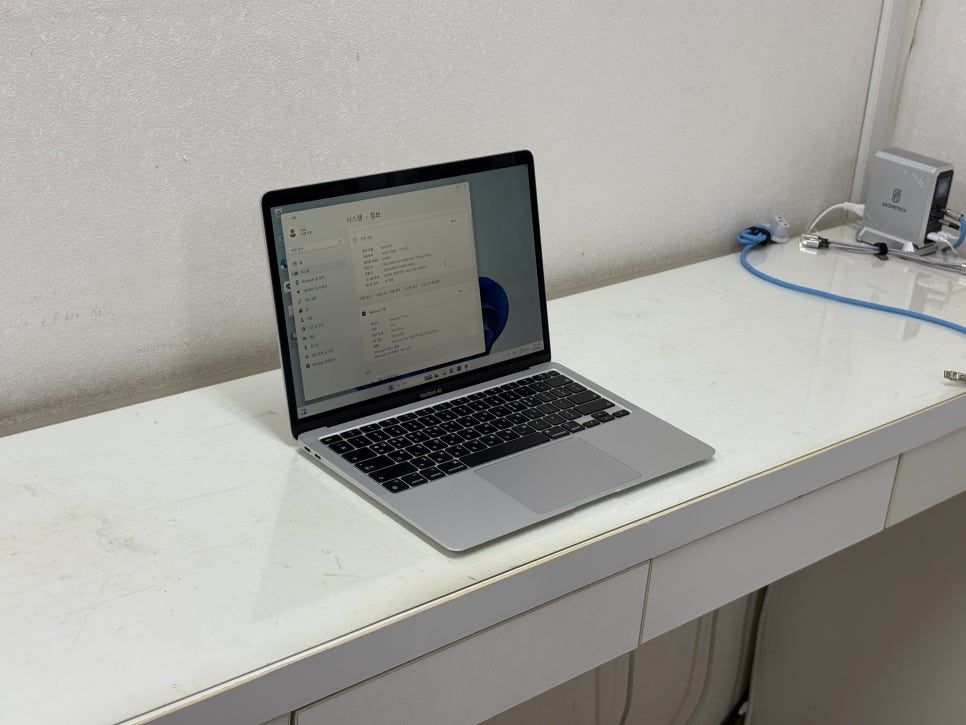
If you need Windows 11 on your MacBook Pro, consider KoreaMac’s Parallels Desktop remote installation consultation. If you must handle both macOS and Windows tasks on one iMac, check your software needs and storage before installation. If you got stuck installing by yourself, organize your device model and required Windows software first, then contact KoreaMac. KoreaMac is located at 402 Hakdong-ro, Cheonma Building 704, Gangnam-gu, Seoul, right outside Gangnam-gu Office Station Exit 1. They offer in-person visits, quick courier, unattended drop-off, and remote installation consultations.
KakaoTalk Consultation:
Website: