This post was written in support of KoreaMac's marketing.
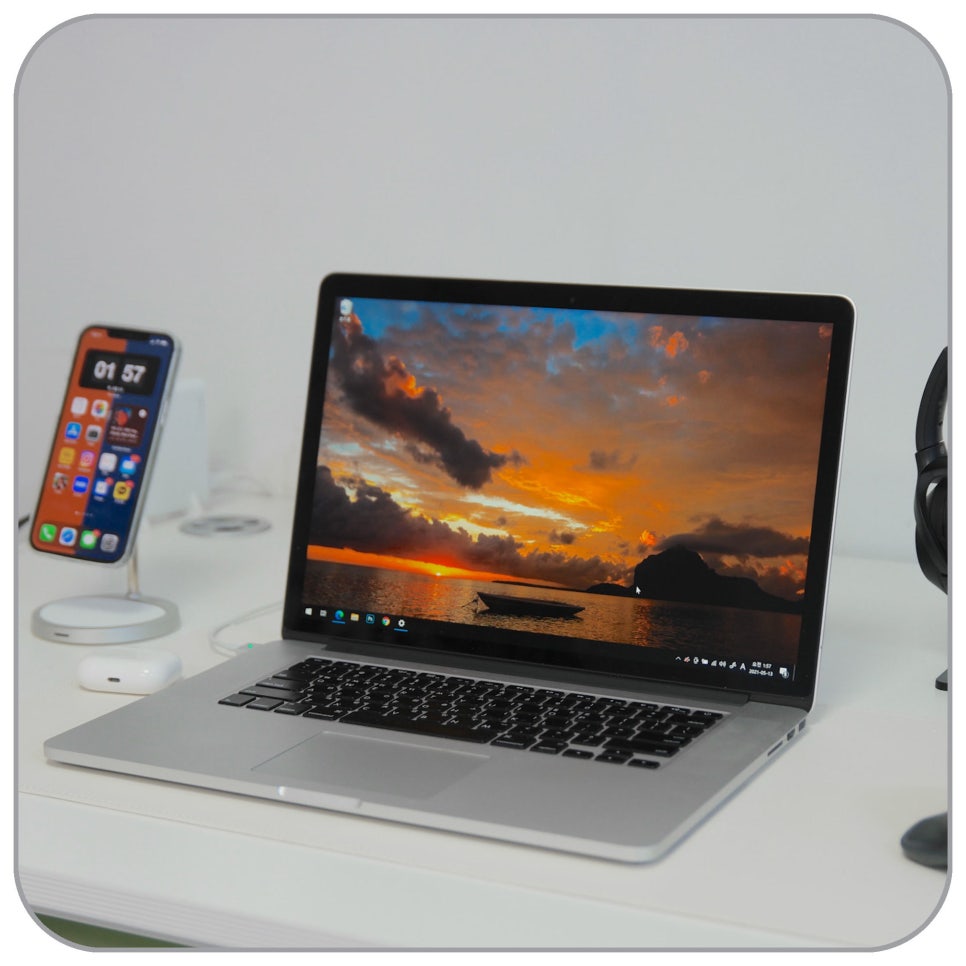
MacBooks are known for their solid build quality, which is why many people use them for years. In an earlier post, I outlined how to install Windows on an older Intel MacBook Pro using Boot Camp. Even models no longer supported by the latest macOS can still be quite usable for document work or simple tasks.
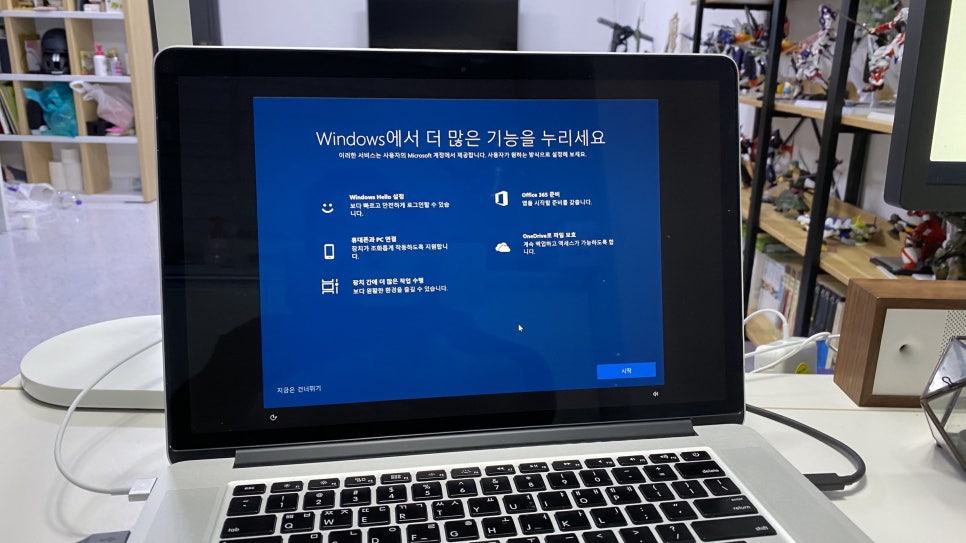
However, before reusing an older Mac, it’s important to check the hardware condition before focusing on the installation process. If the battery, storage, cooling, screen, or charging ports are in poor shape, the machine won’t last long even after installing Windows. In this article, I’ll shift the focus slightly to cover what to look at first before installing Windows on an old Intel MacBook Pro.
Old MacBooks are still usable but require conditions to be met

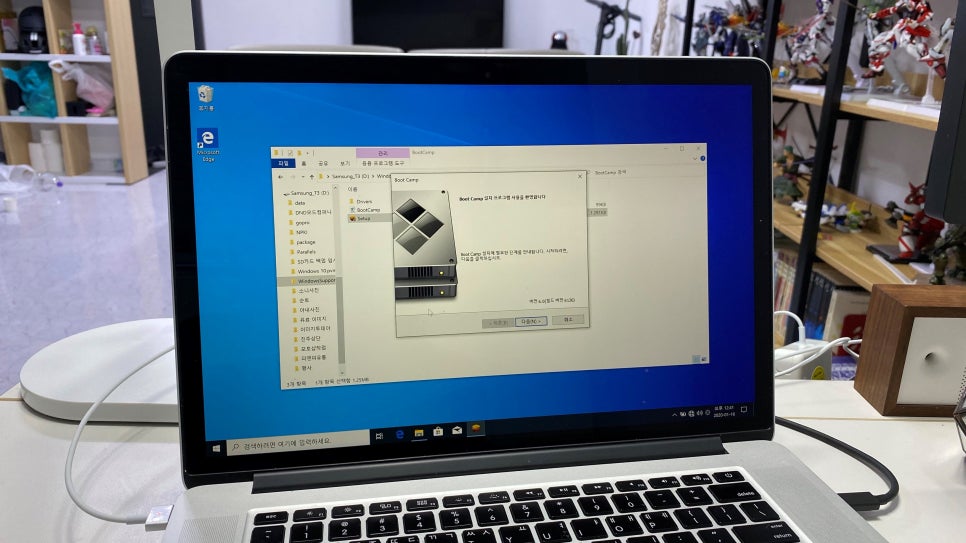
One major advantage of Intel Macs is the ability to install Windows through Boot Camp. Apple’s official support documents describe Boot Camp as a way to install Windows 10 on Intel-based Macs, allowing users to switch between macOS and Windows. This makes it possible to repurpose old MacBook Pros as simple Windows laptops. However, not all older MacBooks are immediately ready for practical use. If storage space is tight or the battery performance has degraded significantly, installations can hang or the system might run unstable after booting. Models with loud fan noise and high heat output need internal cleaning and thermal checks as well.
Why a hardware check is essential before installation
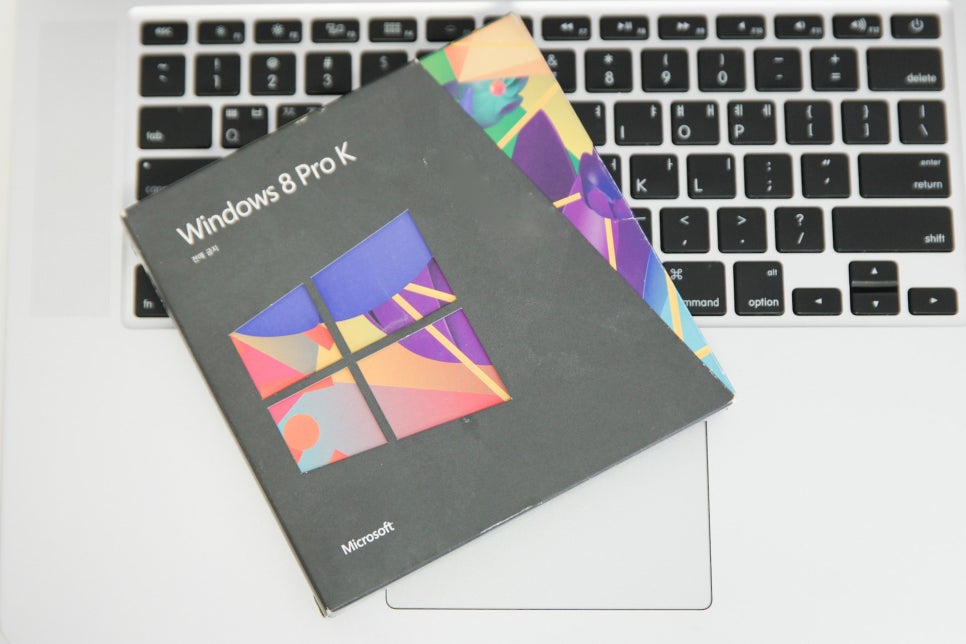
This is still a valid product key.
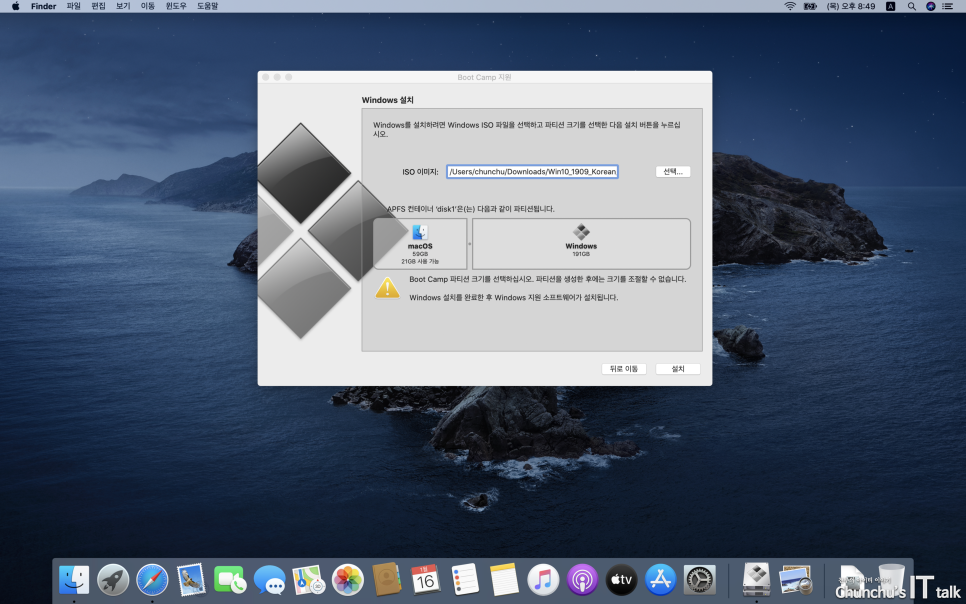
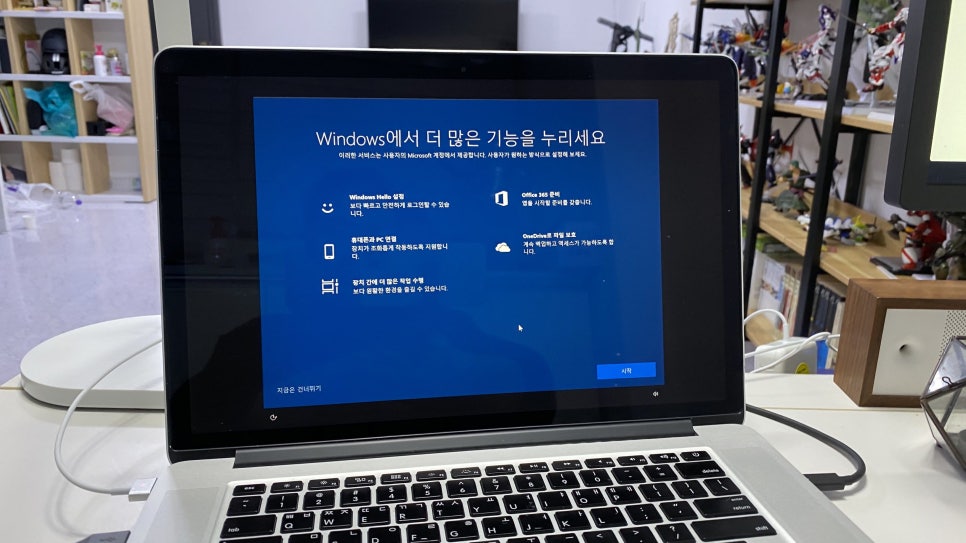
Installing Windows on a MacBook seems straightforward: prepare the ISO file and create partitions using support tools, then proceed with installation. The real challenge comes after installation. Factors like drivers, storage space, heat, and battery life largely determine usability. I once failed to install because I miscalculated the required disk space. While such errors can be simple mistakes, if the storage itself is unstable or the battery voltage fluctuates, the problem is more serious. Repeated installation attempts may cause further issues.
Verifying the condition of an old Intel MacBook Pro is the first step

For those trying to reuse an old Intel MacBook Pro, it’s crucial to inspect the device more carefully than someone buying new. A device that looks fine externally may have a high battery cycle count or insufficient storage, leading to installation failures. Some models also ramp up fan noise during extended use. Boot Camp installation, SSD upgrades, battery replacement, and heat management are interconnected tasks rather than separate jobs. Successful Windows installation alone isn’t enough; the device must remain stable and usable afterward to be worth the effort.
Different approaches for Intel Macs vs.
M-series Macs

If you’re considering using Boot Camp, first confirm that your Mac is Intel-based. Apple Silicon Macs with M1 chips and beyond do not support traditional Boot Camp installation. In those cases, you’ll need to evaluate whether you really need Windows, if virtualization software suffices, or if a separate Windows PC is a better solution. For Intel Macs, Boot Camp installation is possible, but the model’s age and hardware condition greatly affect performance. Even models from 2012 onward show large differences depending on battery cycle count, available SSD space, keyboard condition, and charger port responsiveness. This explains the variation in user experience with the same MacBook Pro models.
Set clear goals before repair or upgrades
It’s best to define your purpose before deciding on repairs or parts replacement when reviving an old Mac. For basic tasks like document editing and web browsing, prioritizing storage space and battery checks makes sense. If you plan on photo editing or frequent use of external monitors, pay extra attention to heat and graphics components as well.
iMacs have more complex internals than MacBooks, involving glued screens, power sections, and cooling systems that require understanding for proper repair. If there’s a power or display issue, it’s important to distinguish whether it’s the power supply, logic board, or screen problem before proceeding. Such issues are best diagnosed by professionals.
If you want to repurpose an old MacBook as a Windows laptop, first check the battery and storage condition before installing. If installation errors persist or drivers are unstable afterwards, the issue may not be a simple configuration problem.
The same applies if your iMac or MacBook suddenly slows down or overheats. Cleaning dust and thermal paste inside older devices can improve performance, but power supply or logic board issues require proper diagnostics. It’s better to rely on a service familiar with Mac architectures in such cases.
Old MacBook Pros still have potential for reuse
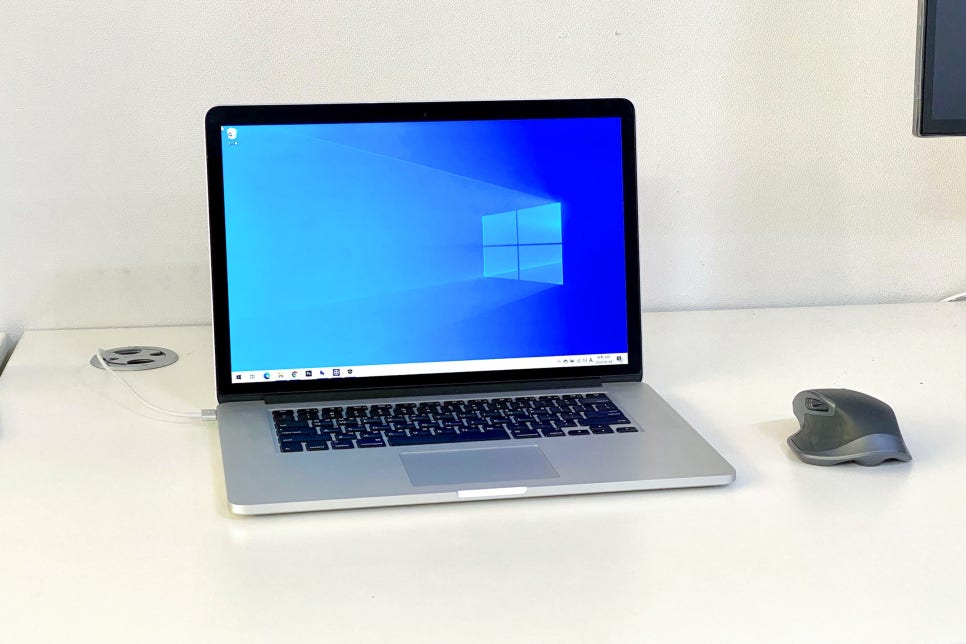
Older MacBooks can still be useful, especially Intel models thanks to Boot Camp's support for Windows environments. With a clear purpose, they make good secondary work laptops. However, installation eligibility and actual usability are not the same. Assessing battery health, SSD space, heat management, power, and screen condition before deciding on repairs or upgrades is key. While some old MacBooks can be revived successfully, don’t spend excessively without evaluating current condition first.
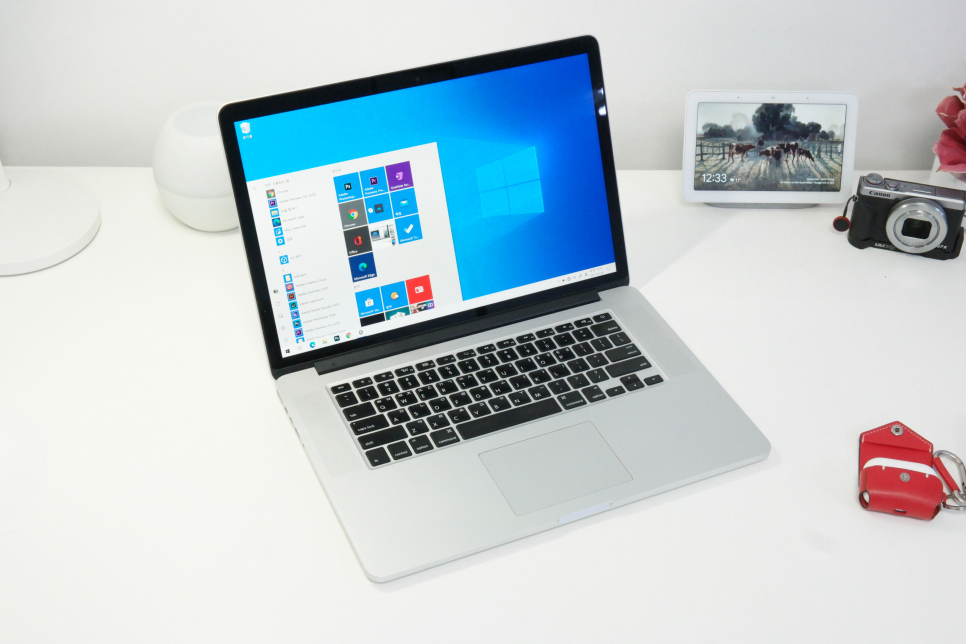
Before buying a new MacBook or leaving an old machine unused, it’s wise to check its current state. Installing Windows only matters if the device can reliably handle it. Reviving an old Mac starts with proper diagnostics rather than just installation files.
If installation fails, seeking help is advisable