While simple background removal or creating main images was enough before, complex compositing or retouching often required switching to a Mac. However, looking at recent trends in Photoshop Mobile and the iPad app, it's becoming harder to see iPad Photoshop as just a supplementary tool.
I often use the iPad Pro for quick tasks like blog main images, Fair Trade Commission disclaimer images, card news drafts, and product photo retouching. Opening photos and cleaning up backgrounds right on set now feels much more natural.

The changes in iPad Photoshop are less about adding individual features and more about shortening the overall workflow. Previously, creating a selection, erasing, and then refining was time-consuming. Now, with selection tools and AI features, you can process parts to remove from photos much faster.
According to Adobe's official help, Generative Fill is available in iPad Photoshop. After creating a selection, you can use text prompts to add new elements, change backgrounds, or remove distractions. The results are saved as separate generative layers, meaning your original image remains intact and can be adjusted again.
This feature is very practical for blog work. For example, if there are messy cables behind a product or the desk background is too busy, you don’t need to retake the whole photo. While not every output will be perfect at once, it's sufficient for quickly creating main image candidates.

The most practical reason to use Photoshop on an iPad is still background removal and cleanup. I've covered background removal with the iPad Photoshop app before, and now that process is even faster. Photoshop Mobile on the App Store highlights background removal, background replacement, and object removal using Generative Fill as core features.
Selection tools like Tap Select and Object Select are very convenient when working with product photos. Simply select the product roughly, remove the background, then add a new background or adjust brightness and color if needed, and your blog image draft is ready.
While tricky subjects like complex hair or translucent materials still require manual review, workflow speed has improved significantly for typical product or desk photos.

The Remove Tool
The Remove Tool is another feature worth mentioning. Introduced in Photoshop 5.2 for iPad, this tool lets you brush over objects you want to erase. It's great for tidying up distracting elements like dust, small stains, or objects in the background on blog photos.
Using an Apple Pencil rather than your finger allows for more precise work. Retouching becomes even easier when you combine Photoshop with Lightroom on the iPad Pro. It’s more efficient to first adjust exposure and color in Lightroom, then handle compositing, background removal, text, and layers in Photoshop.
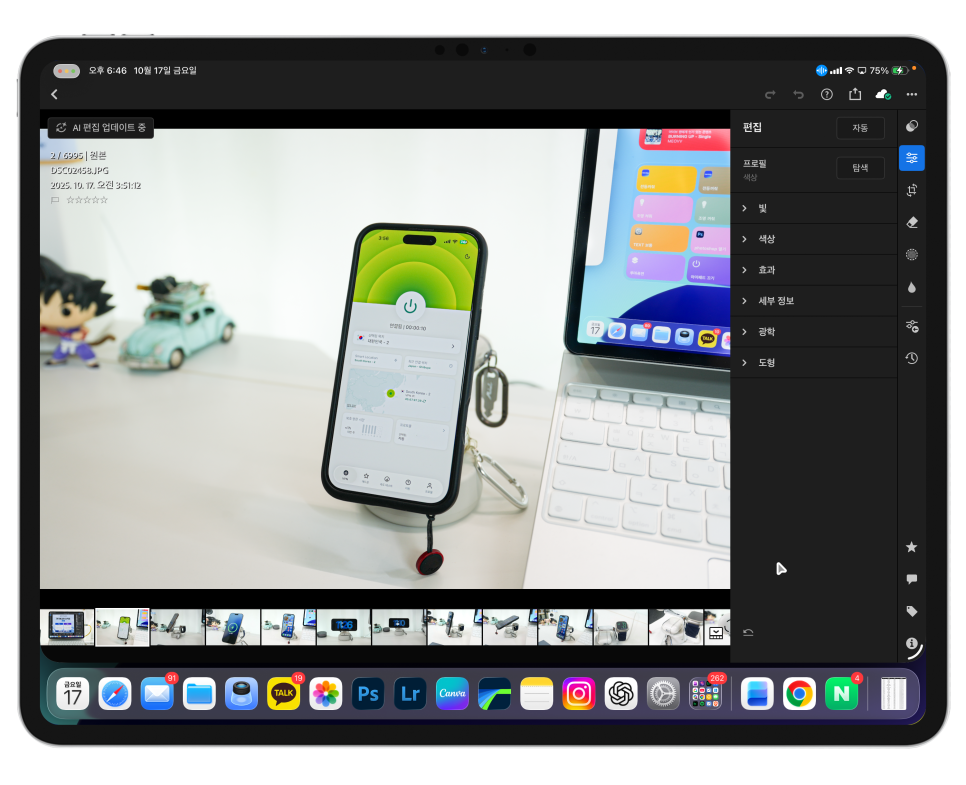
Camera Raw Filter Support
iPad Photoshop now supports the Camera Raw Filter, allowing you to adjust color, tone, effects, detail, and optics on pixel layers, broadening your photo editing capabilities.
While it’s not quite the same as having all panels open deeply on a desktop, it's more than enough to quickly fix brightness and color on-site and prepare images for upload. There’s no need to overextend the iPad Pro’s role.
Tasks like working with large PSD files, intricate composites, or many high-resolution layers are still easier on a Mac. Instead, it’s natural to use the iPad for initial selections, background cleanup, quick edits, and main image drafts, then finish details on Mac.
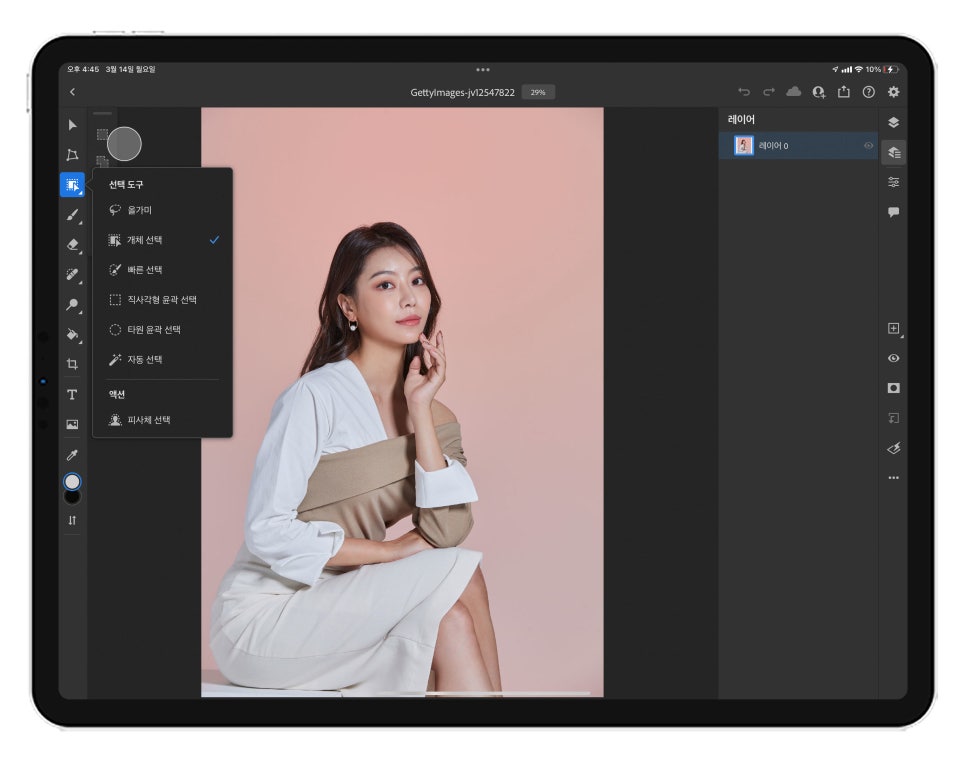
For blog work, it’s ideal to start by delegating main image and in-article image cleanup to the iPad Photoshop. For example, after shooting product photos, you can clean up backgrounds, add necessary text, and color correct entirely on the iPad.
This can be done on the go — even during external meetings or on set — saving valuable time.
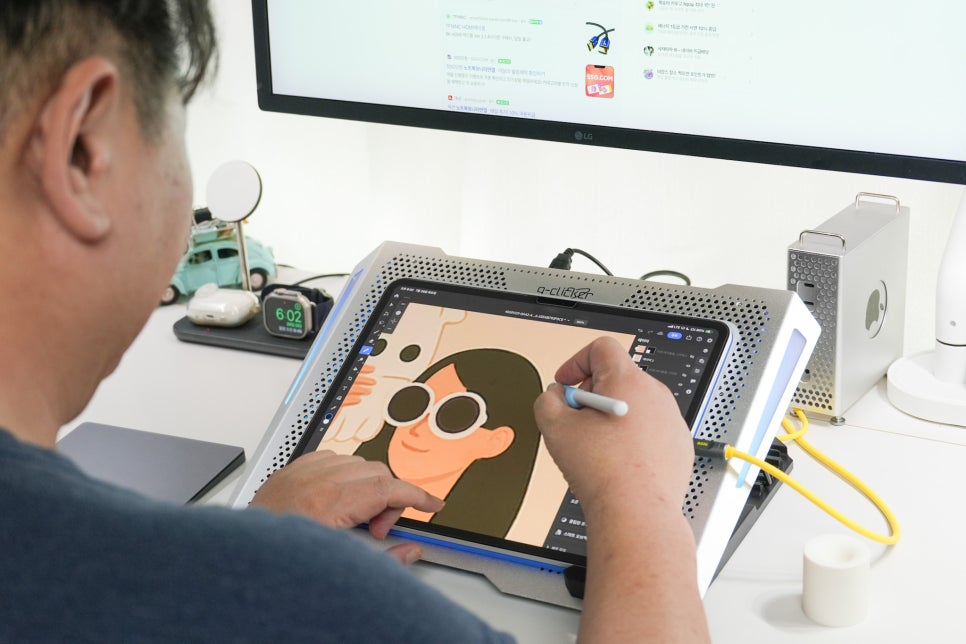
There are benefits when creating card news or thumbnails, too. You can quickly position elements with your hands and refine selections with the Apple Pencil, sometimes faster than using a mouse.
Being able to edit images without interrupting your writing flow is another advantage.

However, for highly precise work like advertising images or final drafts for clients that require exact fonts, detailed spacing, and multiple version management, it’s better to finish on a Mac.
iPad Photoshop excels at quick production and edits, while desktop Photoshop is better suited for final polishing and file management. Splitting work between devices means you don’t have to force everything onto one device.