This post may earn commissions through Partners activities.
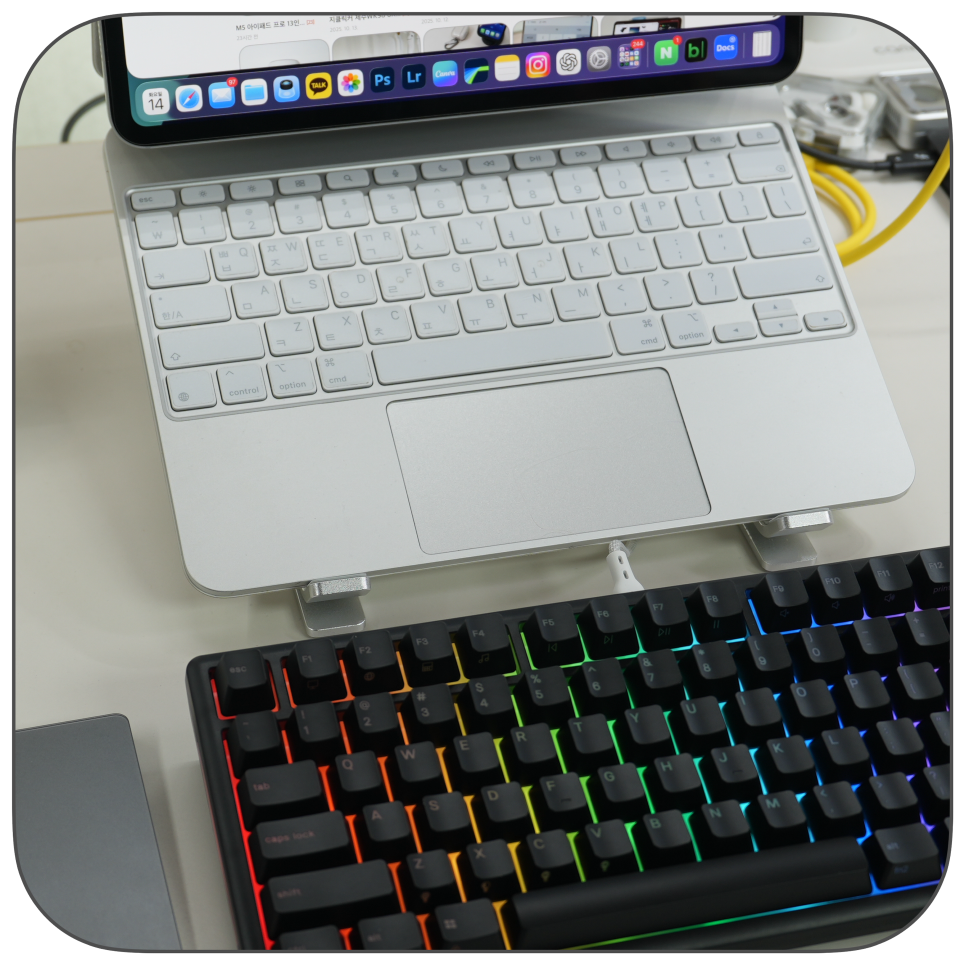
After using the iPad Pro for work over a long period, you may find that touch input alone can feel limiting. Holding it for quick notes or watching videos is fine, but when it comes to writing documents or blog posts, the screen angle and input method become significant factors. That’s why many people look for an iPad stand and keyboard combination. However, simply pairing these two doesn’t instantly make the experience as comfortable as using a laptop. You also need to consider screen size, stand height, keyboard layout, and whether to use a mouse to create an effective work setup.
Today, I’ll break down the key points to review before using a tablet for work.
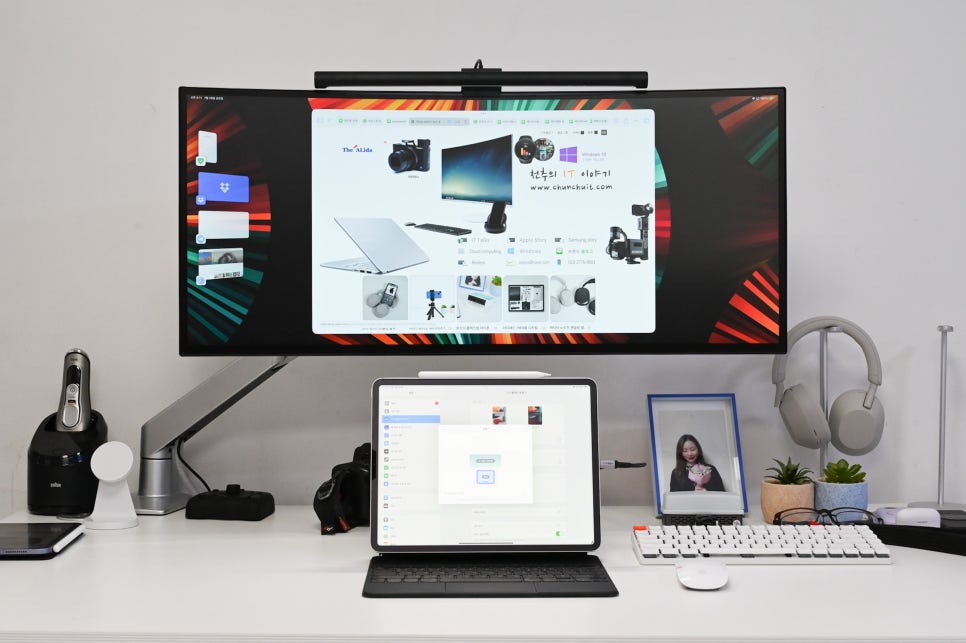
Why People Want to Use Tablets Like Laptops
This has been a common approach for a long time. The device is lightweight, has long battery life, and switches between apps quickly. Especially with professional-grade models offering strong performance, tasks like writing documents, photo reviewing, and basic video editing can be handled smoothly. While it used to be seen as a secondary device, nowadays many treat it as a compact work screen. From my experience drafting blog posts and reviewing materials on the iPad Pro, I found that relying solely on the touchscreen for long writing sessions has limits. Without a stand, you tend to look down, and the on-screen keyboard covers part of your text. Using it hands-free on a desk instead of holding it makes a big difference in comfort.
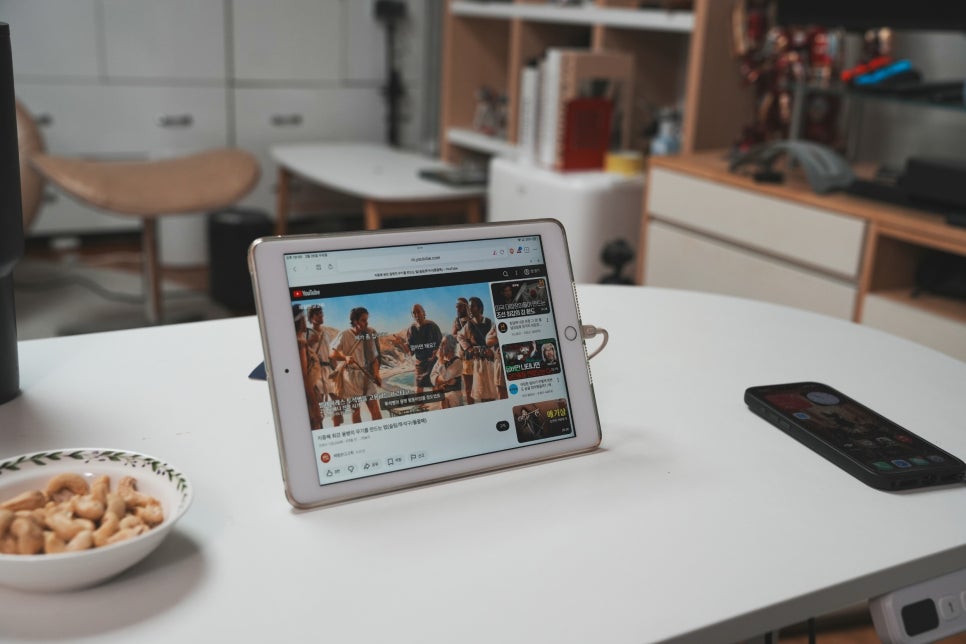
You can actually use the iPad without a keyboard.
When choosing an iPad stand, height and angle should come before design. A screen positioned too low is more uncomfortable than a laptop—it forces you to look down constantly and breaks your posture when editing long documents. Raising the screen closer to eye level makes even a small display feel more stable. Adjusting the angle is just as important. If you’re only watching videos, reclining the screen far back works fine, but when using input devices, a screen that’s too flat causes reflections and requires more eye movement.
For writing or reviewing materials, it’s better to keep the screen relatively upright. You’ll notice this difference much faster when comparing setups on a desk.

When it comes to keyboards, layout matters more than portability.

Tablet keyboards tend to be small and lightweight. Mini or foldable models may seem convenient for portability, but if you write a lot, key spacing, switching between languages, and arrow key placement become more important. Keys in awkward positions often cause more typos than you’d expect. If you frequently write blog posts or documents, it’s better to prioritize a familiar layout over a very compact one. Personally, I found that unfamiliar language toggles and arrow keys disrupted my writing flow. You should also check whether the keyboard is a dedicated model or a general Bluetooth device.
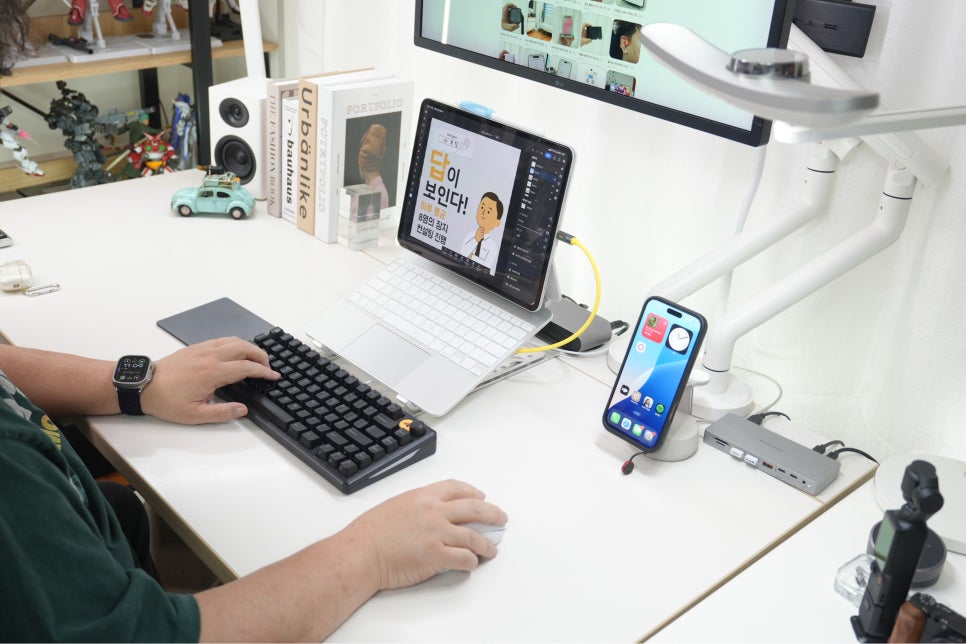
Integrated keyboard cases and separate combos have noticeable differences.
Keyboard cases come closest to a laptop feel. Since the case and keyboard are attached, you can unfold it and start working immediately, making it easy to carry around as one piece. This is especially convenient in cafés or meeting rooms where you move around often. However, screen height is limited—you’ll likely find it a bit uncomfortable after long use because the screen sits low. Using a separate stand and keyboard allows for more flexible screen height adjustment.
If you mostly work on a desk, a separate combo offers better comfort, while an integrated case is less cumbersome for frequent moving.
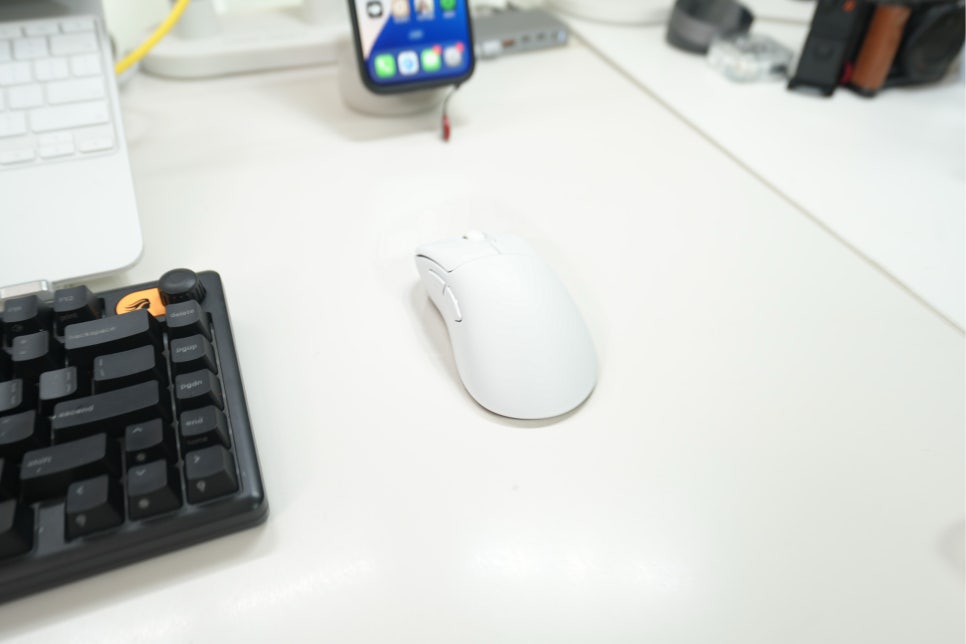
Connecting a mouse changes the experience.
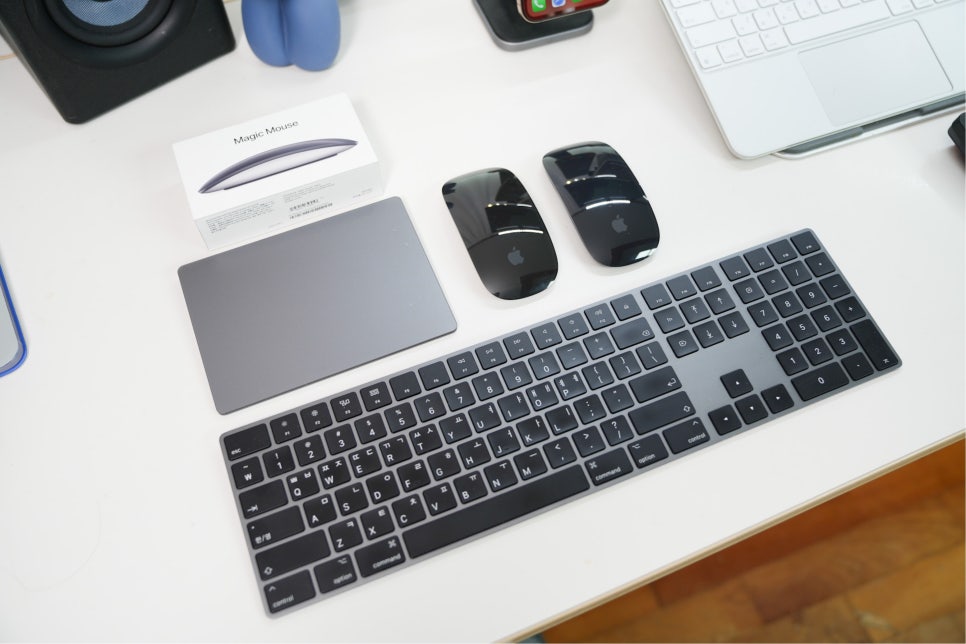
I also use the iPad for blogging and design work. Since tablets are touch devices, a mouse isn’t absolutely necessary. But having one is much more convenient for editing documents, managing tables, or precisely positioning elements when editing blogs. It saves you from repeatedly reaching up to the screen, making your workflow smoother. That said, connecting a mouse doesn’t turn the iPad into a full MacBook experience. Cursor behavior varies slightly across apps, and web editing isn’t exactly the same as on a desktop.
Still, it’s definitely helpful to reduce constant screen touching. A mouse is better seen as an accessory to lessen desk work fatigue rather than an essential tool.
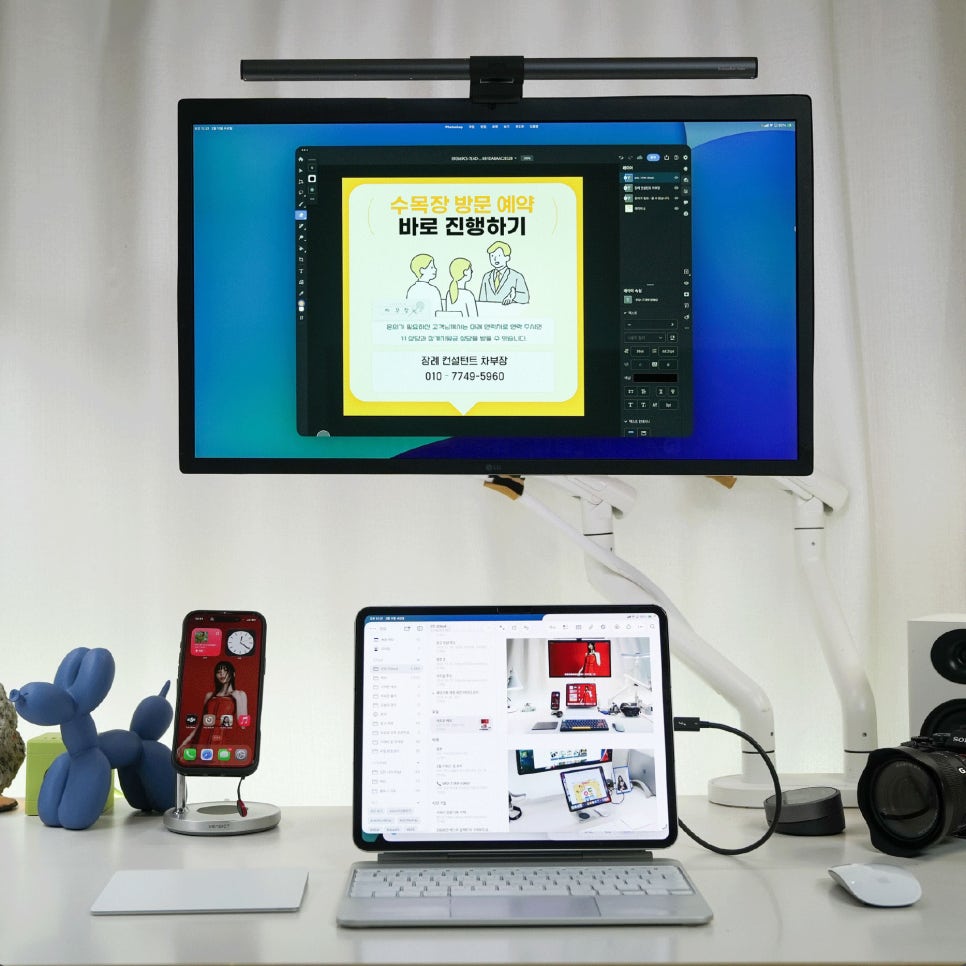
There was a time when all devices were connected to one machine. Now, equipment is more spread out. A mouse and trackpad have become essential.

What to Check Before Using the iPad as a Laptop Replacement

To use it as a substitute, you first need to analyze your main tasks. If you mostly handle email, document writing, blog drafts, PDF reading, and video watching, an iPad stand and keyboard combo will likely satisfy your needs. Adding a mouse makes the desk setup even more stable. But if you often work with multiple windows at once, frequently transfer files, or rely on specific desktop software, completely replacing a laptop is difficult.
It’s fast and lightweight for compatible tasks, but it’s not an all-in-one machine. Understanding this difference beforehand helps avoid disappointment.