This post is sponsored by Naver Brand Connect.
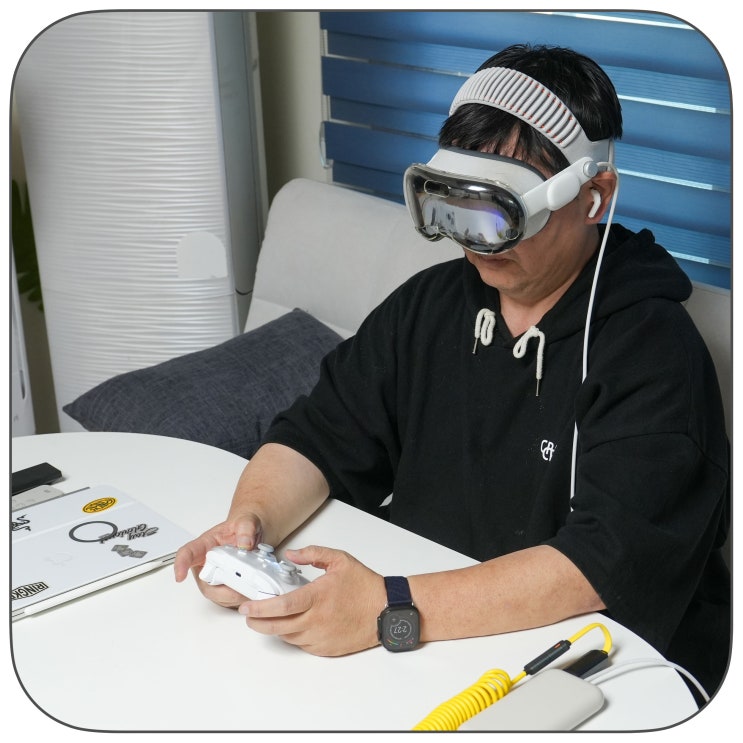
The reason I started paying attention to gamepads again was because of the Vision Pro. I used to spend a lot of time using the Vision Pro as a large virtual monitor, but lately, since I’ve been splitting work between two MacBooks and an external monitor, the Vision Pro has become more of a device for gaming. To enjoy Apple Arcade or games that support a gamepad, I needed a familiar controller in my hands.
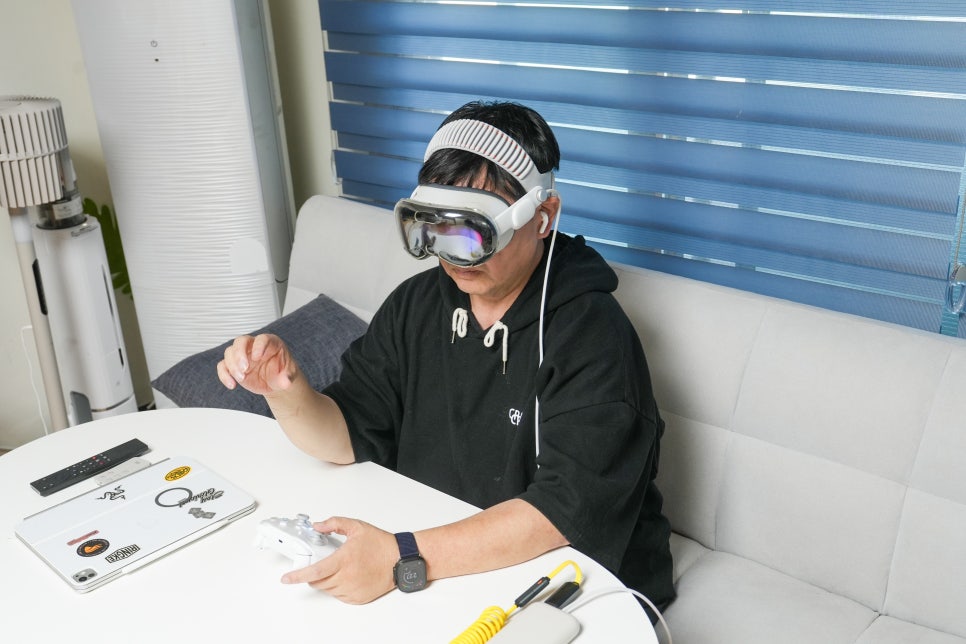
The product I’m reviewing this time is the Xenics Titan GP7. I had used the GP5 previously for Nintendo, and it was such a satisfactory device that my family even took it and I couldn’t get it back easily. So, with the GP7, I approached it not so much as a completely new product but more to see how much the aspects I missed in the previous model were improved.
Looking at the GP7 after using the GP5
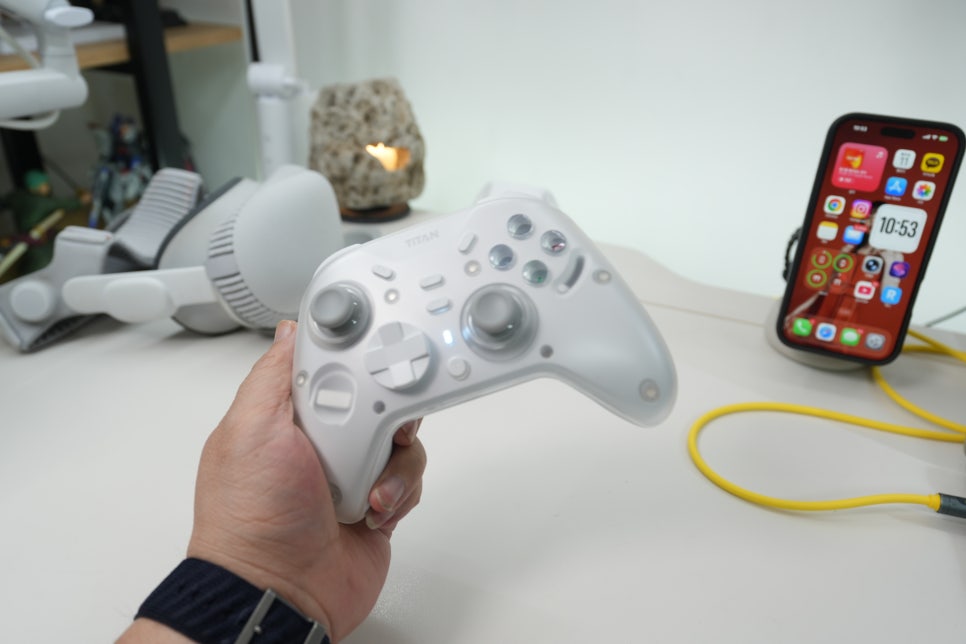
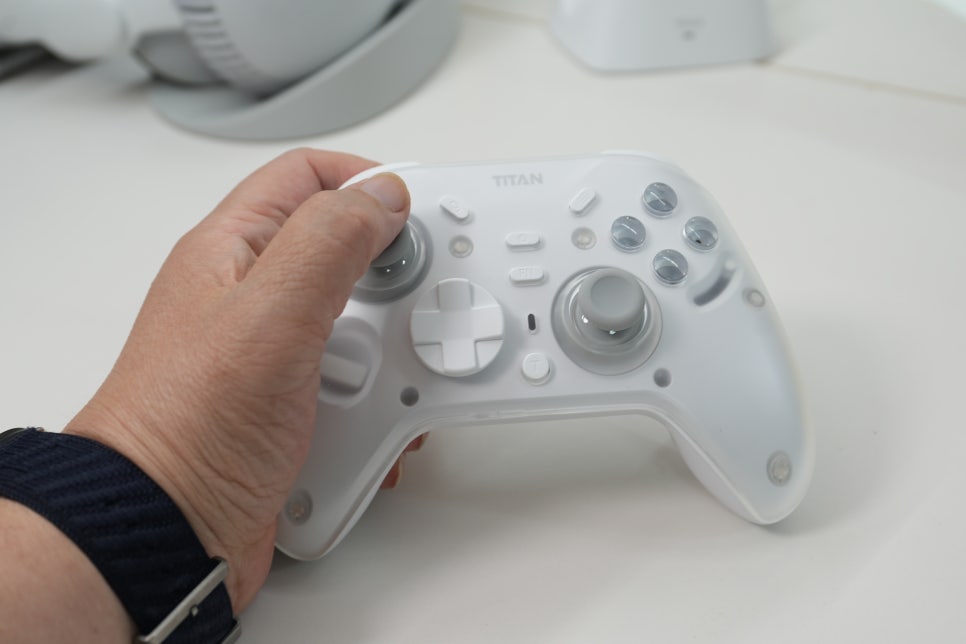
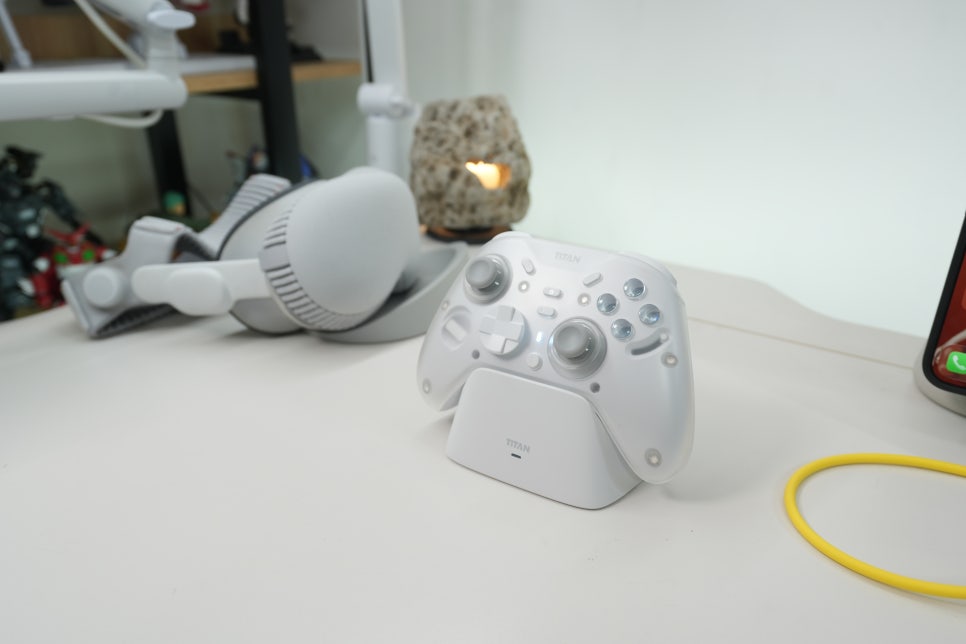
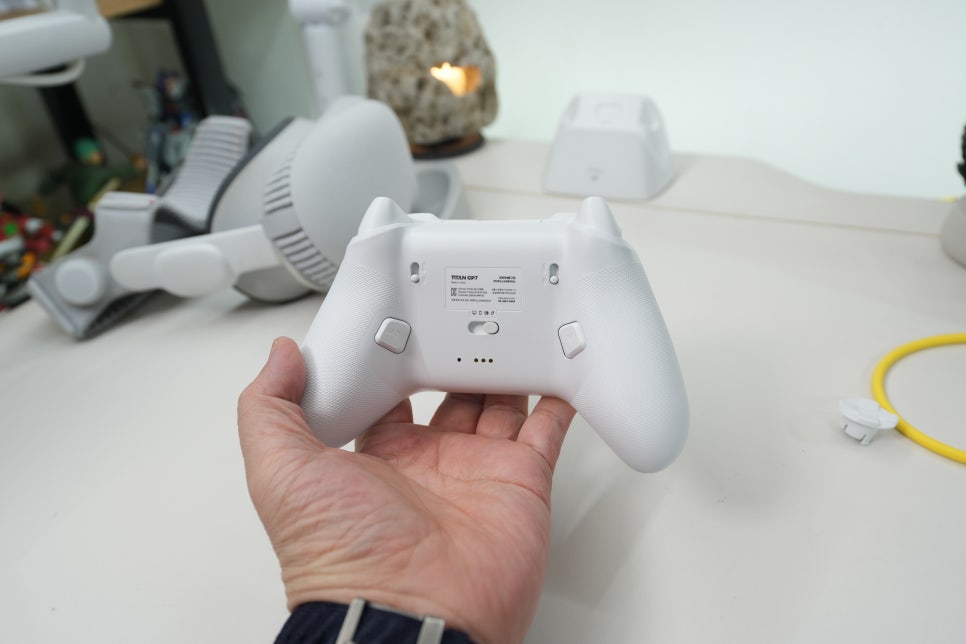
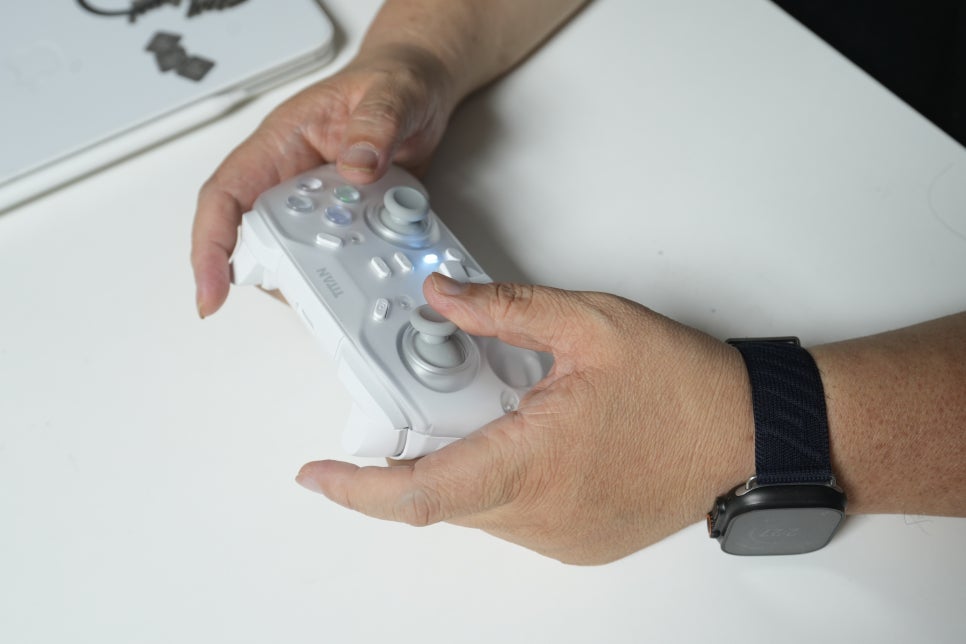
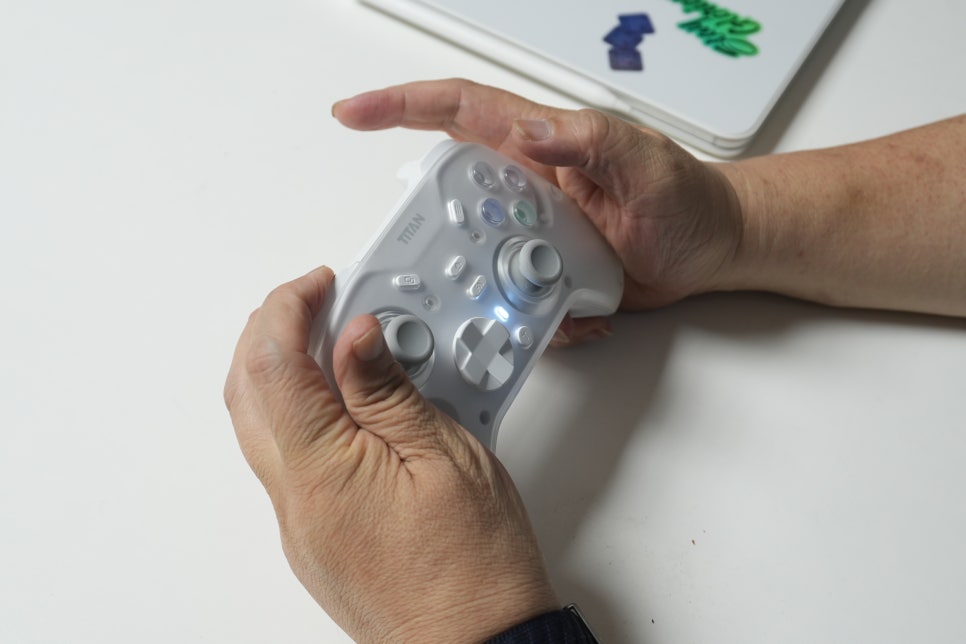
The first thing that struck me when unboxing was the color and design. The GP5 I used before was black, which felt somewhat heavy sitting on the desk, whereas the GP7 comes in a white shade and looks much cleaner. It also has a translucent top panel, making it less overwhelming as a gaming device and more suitable for desk decoration. The grip didn’t change much from the previous model. It felt familiar in my hands, so I barely needed any time to adjust. While button count and specs are important for gamepads, in the end, you need a device that doesn’t feel awkward in your hand for prolonged use. As someone who’s used the GP5, this comfort was immediately noticeable.
Unboxing and contents
Inside the box, you get the gamepad itself, a charging dock, a USB receiver, a cable, and a manual. The packaging mentions compatibility with Switch, Android, Windows, and Apple systems, which caught my eye since I wanted to use it not only with PC and Nintendo but also the Vision Pro. When it comes to wireless pads, if charging spots are inconvenient, you tend to just use them plugged in. The GP7 comes with a charging dock by default, making it easy to place the pad down when not in use. Having a dedicated spot on your desk is just as important as performance because a charging dock helps prevent the pad from getting lost in drawers.
Most welcome button layout update
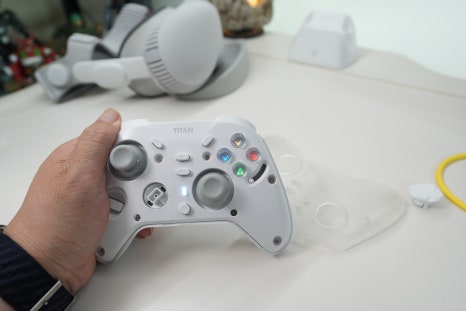
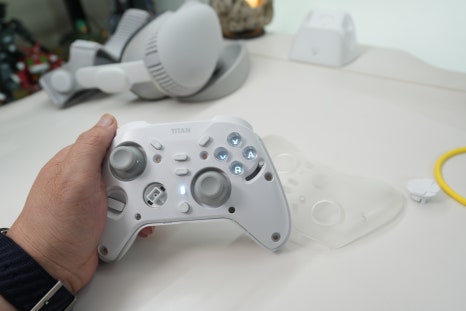
The feature that got the biggest positive reaction during unboxing was the button layout. Previously, using the GP5 on Nintendo was inconvenient because the button labels didn’t match Nintendo’s layout. This meant I had to manually reconfigure buttons in the Switch settings, which was quite a hassle.
The GP7 allows you to switch button labels between Microsoft and Nintendo styles, which significantly reduces this inconvenience. While it may look like a simple change of button caps, for those who switch between Nintendo and PC, this makes a big difference. Having the button icons on the pad match the buttons shown on screen makes operation much less confusing.
Why I chose it for the Vision Pro
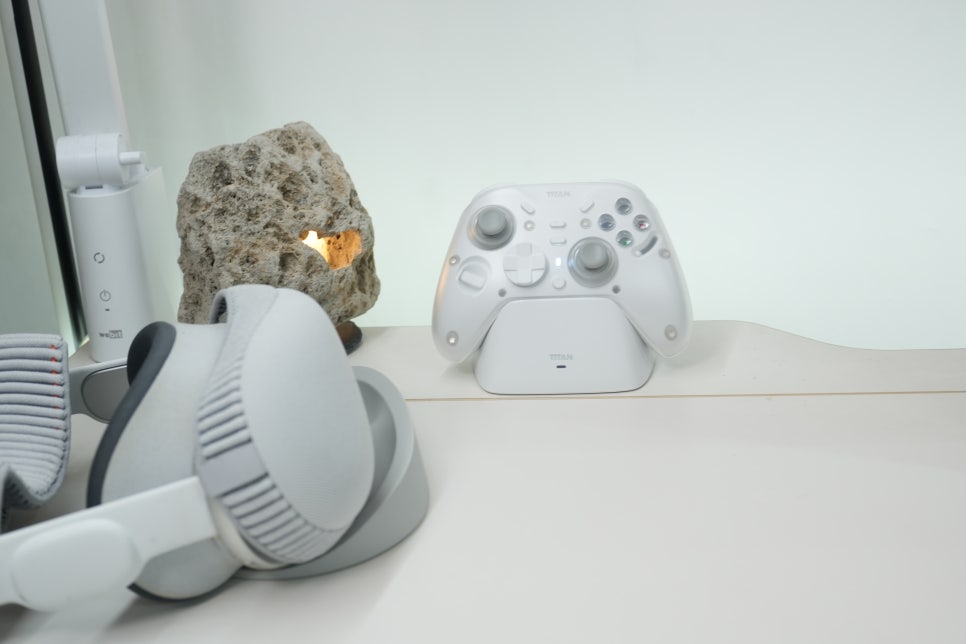
At first, I mostly used the Vision Pro as an extended workspace. But recently, since I’ve been running AI tasks across two MacBooks, it’s become harder to keep the Vision Pro as my main work screen. Instead, I’ve found myself spending more time playing Apple Arcade and other game apps on it, which increased my need for a gamepad. Using hand tracking alone on the Vision Pro isn’t enough for some games—especially those requiring continuous directional movement or repeated button presses, where a gamepad is far more comfortable. So I view the GP7 not just as a controller for PC and Nintendo but also as an input device well-suited for the Vision Pro.
Charging dock and connectivity
The GP7 supports both Bluetooth and 2.4GHz wireless connections. On PC, using the 2.4GHz receiver provides a stable connection, while on devices like Nintendo or Vision Pro, it automatically prioritizes Bluetooth. I was pleasantly surprised by how fast the Bluetooth pairing process was. The charging dock is more than just a charging stand—it helps keep your desk organized. You can leave the USB receiver plugged into your dock or hub, so the gamepad is always ready to use with your PC. Personally, though, I wish the dock’s charging indicator light was more visible on the desk so I could more easily check the charging status.
Who is this for?